Running Garena Free Fire smoothly on a budget or older smartphone can be challenging. As game updates introduce new character abilities, graphical effects, maps, and weapon skins, the processing power required to run the game increases. On hardware with limited resources, this often leads to noticeable frame drops, micro-stutters, delayed touch responses, and excessive heat buildup.
While you cannot upgrade your smartphone’s physical processor through software, optimizing your in-game settings and managing system resources can noticeably improve frame consistency. Adjusting visual parameters helps shift the workload off your device’s graphics processing unit (GPU) and central processing unit (CPU), helping you maintain a stable frame rate during intense squad fights.
This guide breaks down the optimal in-game Free Fire configurations for budget and entry-level hardware, explains how to handle thermal limitations, and clarifies how to separate hardware performance from network latency.
Quick Answer: Best Free Fire Settings for Low-End Phones
For low-end or older smartphones, the primary objective is frame stability over visual flair. To achieve the smoothest possible experience, prioritize your settings in this order:
1. Prioritize Performance: Set Graphics to Smooth. This removes complex lighting, high-resolution textures, and heavy shadow rendering.
2. Select the Most Stable FPS Mode: Enable the High FPS toggle *only* if your phone can sustain it without overheating; otherwise, use the standard frame rate setting to prevent severe thermal throttling.
3. Turn Off Visual Extras: Disable shadows, turn off high-definition display modes, and set visual styles or filters to Classic or Standard.
4. Reduce Thermal Load: Lowering graphical rendering reduces battery drain and delays the onset of heat-induced CPU throttling.
5. Protect Control Responsiveness: Ensure your display is clean and free of background tasks that cause input latency during gunfights.
Because every phone model features a different combination of processor, RAM, and cooling capabilities, there is no single universal button preset. The goal is to find the point where your specific device delivers a consistent, stutter-free frame rate.
What Counts as a Low-End Phone for Free Fire?
In mobile gaming, a “low-end” or entry-level phone cannot be defined strictly by a single hardware specification or RAM capacity. Devices with similar amounts of memory can perform radically differently depending on the efficiency of their underlying chipsets and operating system optimizations.
A smartphone typically falls into the low-end performance category for Free Fire if it features:
- Older Architecture or Entry-Level Chipsets: System-on-Chips (SoCs) designed primarily for daily media consumption rather than sustained 3D gaming workloads.
- Limited RAM: Devices with 2 GB to 4 GB of RAM, where the operating system and background services consume a large portion of available system memory.
- Modest GPUs: Graphics hardware that struggles to render complex particle effects, dynamic shadows, and high-density smoke or fire simultaneously.
- Basic Thermal Management: Minimal internal heat dissipation structures (such as vapor chambers or graphite sheets), leading to rapid heat buildup under load.
- Aging Hardware: Older devices with degraded batteries that supply less consistent power under peak processing demands, accelerating thermal throttling.
Two devices with 4 GB of RAM might yield completely different experiences. A phone with a gaming-focused mid-range chipset will handle combat drops much better than an older device with an entry-level processor, even if both report the same memory capacity.
Recommended Free Fire Graphics Settings for Low-End Phones
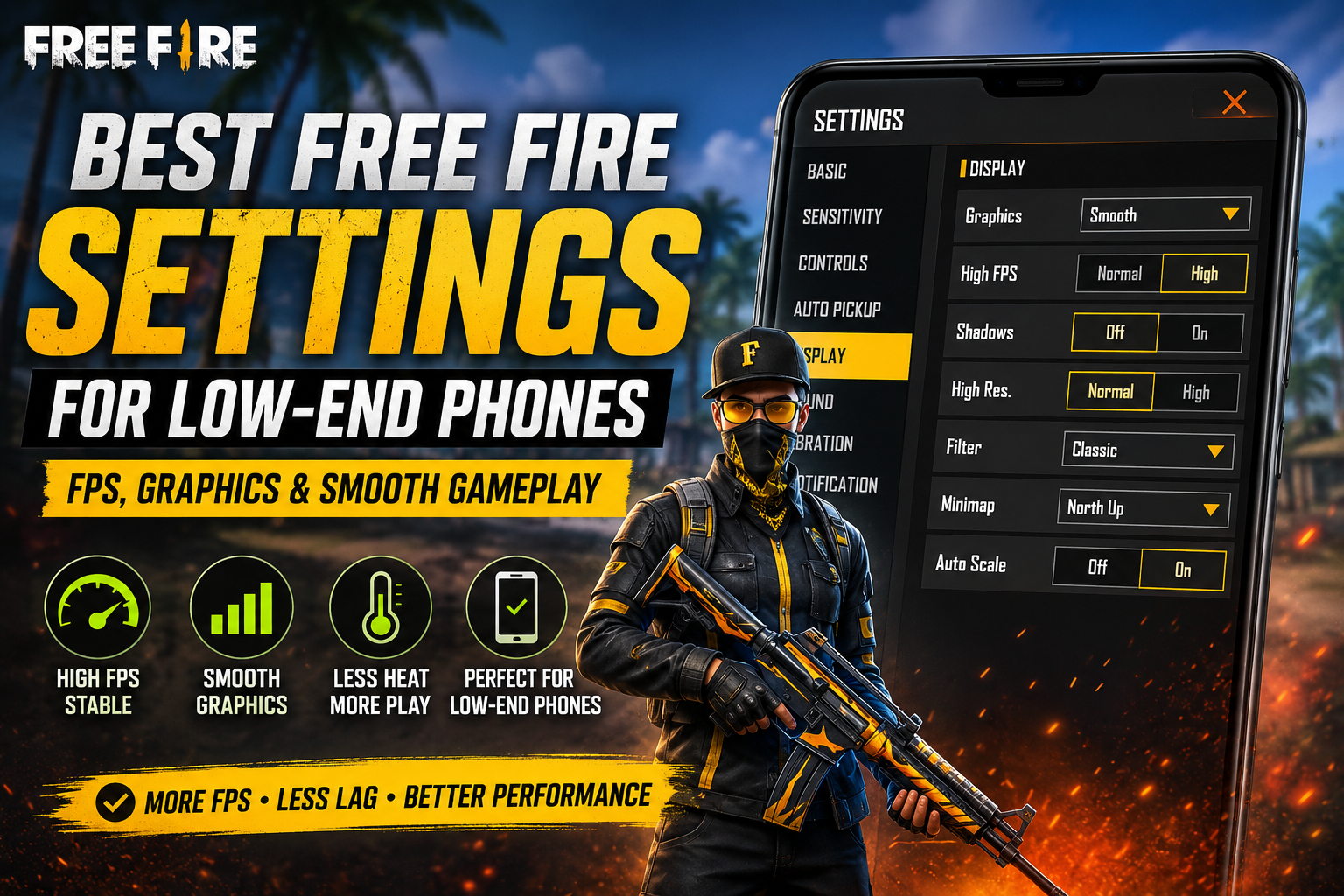
Because Garena periodically updates the user interface, available menu toggles may vary slightly depending on your game version, regional client, or specific device capabilities. Below is a practical guide for configuring your visual options if your menu presents them:
| Setting OptionRecommended SelectionWhy It Helps Low-End Phones | ||
|---|---|---|
| Graphics Quality | Smooth | Minimizes texture resolution and geometry complexity, significantly lowering GPU and CPU strain. |
| High FPS | Normal / High *(Test Both)* | Setting this to High allows smoother motion, but if your phone overheats quickly, reverting to Normal maintains a stable baseline. |
| Shadows | Off | Rendering dynamic real-time shadows is one of the most resource-intensive tasks for mobile GPUs. |
| Visual Style / Filter | Classic or Soft | Avoids saturated color processing or extra post-processing filters that add unnecessary rendering overhead. |
| High Resolution / HD | Normal / Off | Lowering the rendering resolution reduces the total pixel count the GPU must calculate per frame. |
| Auto-Scale / Notch Screen | Match Native Display | Disabling unnecessary display scaling prevents software-level rendering conflicts. |
> *Note:* *If your version of Free Fire displays advanced toggles for specific particle effects or display adjustments, keep them turned off or set to their lowest baseline to preserve processing power.*
Graphics Quality vs FPS
When configuring Free Fire on budget hardware, understand the trade-off between visual fidelity and frame rate consistency.
- Higher Graphics Settings: Demand continuous calculations for high-density textures, lighting reflections, and character skin details. On weaker chipsets, this consumes available processing bandwidth quickly, resulting in micro-stutters, sudden frame drops during close-range encounters, and rapid battery depletion.
- Lower Graphics Settings: Free up GPU resources. While the game may look less detailed, the engine can deliver frames more predictably.
In competitive mobile shooters, predictable frame delivery is far more important than high-resolution visuals. A stable game running on Smooth graphics allows you to track moving enemies, deploy Gloo Walls, and control recoil much more reliably than a beautiful game that stutters during active firefights.
For a deeper look at optimizing your frame rates beyond basic graphics toggles, read our complete guide to Free Fire FPS Boost.
Best FPS Setting for Low-End Phones
Selecting the right frame rate setting requires balancing fluidity against thermal buildup.
In Free Fire’s display menu, enabling the High FPS option instructs the game engine to target a higher output frequency (often up to 60 FPS, depending on device support).
[ High FPS Option Enabled ] ──► Smooth Motion ──► Higher CPU/GPU Load ──► Increased Heat ──► Thermal Throttling
                                                                                                   │
[ Normal FPS Option ] ──────► Baseline Motion ──► Lower Power Draw ──► Stable Temperature ◄────────┘
When evaluating frame rate settings on entry-level devices:
1. Test High FPS First: Enable High FPS while keeping Graphics set to Smooth. Play a casual match or spend time in the Training Ground to observe responsiveness.
2. Monitor for Frame Drops: If the game feels fluid for the first five minutes but begins to stutter severely as the device warms up, your phone is suffering from thermal throttling.
3. Revert to Normal FPS if Unstable: If your device cannot sustain the higher output without generating excessive heat, cap the frame rate by returning High FPS to Normal. A steady, consistent lower frame rate is much easier to play on than a frame rate that violently fluctuates between high and low values.
Free Fire Sensitivity for Low-End Phones
It is crucial to understand that in-game sensitivity settings do not directly affect hardware performance or frame rates. Adjusting your camera or scope sensitivity sliders will not raise your FPS or eliminate lag.
However, hardware performance directly impacts how your sensitivity *feels*:
- When your phone drops frames, screen redrawing lags behind your physical finger movements, making controls feel sluggish or unresponsive.
- Once you stabilize your frame rate using low graphics settings, your touch inputs will register far more predictably.
After stabilizing your graphics performance, fine-tune your control sliders based on touch responsiveness. For a complete breakdown of recommended control setups, check our dedicated guide on Free Fire Sensitivity Settings.
Free Fire Headshot Settings for Low-End Phones
There is no secret setting combination, hidden code, or sensitivity number that guarantees automatic headshots or “one-taps” in Free Fire. Landing headshots depends on mastering drag-shot mechanics, understanding crosshair placement, timing your shots, and practicing consistently.
┌─────────────────────────────────────────────────────────────────┐
│                    STABLE FRAME RATE (FPS)                      │
└────────────────────────────────┬────────────────────────────────┘
                                 │
                                 ▼
┌─────────────────────────────────────────────────────────────────┐
│              CONSISTENT TOUCH SCREEN RESPONSIVENESS             │
└────────────────────────────────┬────────────────────────────────┘
                                 │
                                 ▼
┌─────────────────────────────────────────────────────────────────┐
│             PREDICTABLE CROSSHAIR DRAG MECHANICS                │
└─────────────────────────────────────────────────────────────────┘
On a low-end phone, stable performance directly aids your practice:
- Frame Rate Consistency: A steady frame rate ensures that when you swipe upward on your fire button to execute a drag shot, the on-screen crosshair moves smoothly without skipping frames.
- Touch Registration: Lowering graphics workload reduces input delay, making your drag movements register instantly.
To learn how to structure your control layout and practice aiming techniques effectively, refer to our detailed article on Free Fire Headshot Sensitivity.
How to Reduce FPS Drops on Low-End Phones
To keep your frame rates stable during matches, apply these practical system-level management habits:
- Keep Storage Space Clear: Avoid filling your internal storage to maximum capacity. Flash memory performance can degrade when storage is nearly full, causing system-wide slowdowns.
- Close Unnecessary Background Applications: Fully close social media apps, messaging platforms, and web browsers before launching Free Fire to free up system RAM.
- Disable Heavy System Overlays: Turn off floating chat bubbles, screen recorders, and active display overlays that run on top of the game.
- Avoid Gaming in Direct Sunlight: High ambient temperatures accelerate internal device heat, triggering thermal throttling much faster.
- Remove Bulky Protective Cases: Insulation from thick rubber or leather phone cases traps heat against the back of your device. Removing the case during gaming sessions allows passive air cooling.
- Reboot Before Extended Play: Restarting your device clears temporary system cache files and stops lingering background tasks.
- Test Charging Behavior: Playing while plugged into a charger often generates significant additional heat. If your phone gets uncomfortably hot while charging, avoid playing heavy matches until the battery is replenished.
Free Fire and Phone Temperature
Thermal buildup is one of the primary causes of sudden performance degradation during mobile gaming. When your phone’s CPU and GPU operate under heavy continuous load, they generate heat.
Extended Gaming Session ──► Internal Heat Buildup ──► Thermal Safety Limit Reached ──► CPU/GPU Throttles Clock Speed ──► Sudden FPS Drops & StutterWhen internal temperatures reach a manufacturer-defined safety threshold, the operating system forcibly reduces the processor’s clock speed to protect the hardware from permanent damage. This process—known as thermal throttling—manifests in-game as:
- A match that starts smoothly but becomes extremely laggy after 10 to 15 minutes.
- Unresponsive touch inputs during close-range gunfights.
- Severe stuttering when multiple character skills or explosion effects trigger at once.
Managing device temperature by using low graphics settings and keeping your environment cool is essential for maintaining sustained performance. To troubleshoot thermal throttling alongside overall device performance, read our breakdown on Free Fire Lag Fix.
Does a Phone Cooler Help Low-End Phones?
External phone coolers—such as clip-on semiconductor cooling fans or basic heat-sink fans—are designed to draw heat away from the back panel of a smartphone.
┌─────────────────────────────────────────────────────────────────────────┐
│                         WHAT A COOLER CAN DO                            │
├─────────────────────────────────────────────────────────────────────────┤
│ • Delays or prevents thermal throttling during long sessions            │
│ • Maintains baseline frame rate consistency                             │
│ • Reduces physical heat discomfort on your hands                        │
└─────────────────────────────────────────────────────────────────────────┘

┌─────────────────────────────────────────────────────────────────────────┐
│                        WHAT A COOLER CANNOT DO                          │
├─────────────────────────────────────────────────────────────────────────┤
│ • Cannot transform an entry-level processor into a flagship chip        │
│ • Cannot add physical RAM or GPU capacity to your device                │
│ • Cannot fix high network ping or server-side lag                       │
└─────────────────────────────────────────────────────────────────────────┘
A cooling accessory can help a low-end phone maintain its maximum *baseline* speed for longer periods without throttling down. However, it cannot make a device run at performance levels beyond what its hardware was manufactured to handle.
If you are considering an external cooling attachment to help manage heat buildup during longer play sessions, explore our guide to the Best Phone Coolers for Free Fire.
Network Lag vs FPS Drops
A common point of confusion among mobile gamers is the difference between hardware performance drops (FPS lag) and network latency (ping lag). Because both lead to frustrating gameplay, they are often mistakenly treated as the same issue.
| SymptomPrimary CauseWhat It IdentifiesWhere to Check | |||
|---|---|---|---|
| Choppy motion, screen freeze, dropped frames, sluggish swipe controls | Hardware / FPS Drops | The phone’s processor is struggling to render graphics quickly enough. | In-game display settings, background apps, device temperature. |
| Enemies teleporting, shots failing to register, delayed loot pickup, high ping number (e.g., 200ms+) | Network Latency / Ping | Data packet transmission between your phone and the game server is delayed or losing packets. | Wi-Fi signal strength, mobile data stability, background downloads. |
| Game runs smoothly initially, then stutters severely after 15 minutes | Thermal Throttling | Internal hardware heat has forced the CPU to slow down its operating speed. | Device heat, direct sunlight, charging status, phone case insulation. |
A low-end smartphone can experience high network ping just like a flagship phone, but high ping is caused by connection instability, not a weak GPU. For steps on diagnosing connection stability alongside hardware issues, consult our detailed resource on Free Fire Lag Fix.
Free Fire Background Apps and Low-End Phones
Smartphones with 2 GB to 4 GB of RAM must allocate system memory carefully. When you launch Free Fire while multiple social media applications, messaging services, or media players remain open in the background, system memory becomes congested.
When available RAM is fully consumed:
- The operating system forced-closes secondary processes, which can cause micro-stutters during gameplay.
- Background apps may continuously attempt to sync data over your internet connection, causing unexpected ping spikes.
- The CPU works harder to manage multitasking, generating unnecessary heat before you even drop from the plane.
Before launching a game session, manually close recent applications through your phone’s multi-tasking view. Avoid disabling essential system services, but stop non-essential user applications from running concurrently.
Storage and Free Fire Performance
Maintaining healthy internal storage is essential for smooth operating system performance. Modern mobile operating systems utilize free storage space as virtual memory (swap space) and temporary cache storage.
When internal storage becomes critically full (e.g., less than 10% remaining capacity):
- Read and write speeds across the internal storage chip drop significantly.
- The game engine takes longer to load textures, map assets, and character models when entering new zones.
- App updates and resource pack installations can become corrupted or stall.
Regularly remove unused media files, uninstall unused applications, and clear temporary caches through your phone’s built-in storage manager to ensure your operating system has room to execute background tasks efficiently.
Should You Use Game Booster Apps?
Many budget smartphones come equipped with built-in system tools (such as Samsung Game Launcher, Xiaomi Game Turbo, or Realme Game Space). These factory tools are integrated directly into the operating system and are designed to:
- Temporarily block incoming notifications and phone calls during matches.
- Limit background data synchronization while gaming.
- Lock screen brightness levels to prevent unexpected adjustments.
However, be cautious regarding third-party “Game Booster” apps downloaded from untrusted sources.
> *Warning:* *Unofficial third-party boosters often do little more than force-close apps or display aggressive advertisements. Worse, any third-party app that attempts to modify Free Fire’s internal game files, inject custom scripts, or alter game code risks triggering Garena’s anti-cheat detection system, which can result in a* *permanent account ban**. Stick strictly to official built-in system tools.*
Best Free Fire Settings for Different Low-End Phone Situations
| Device ScenarioRecommended Graphical ConfigurationPrimary Action | |
|---|---|
| —————————————————————- | – |
| Very Old / 2 GB RAM Device |
Graphics: Smooth
High FPS: Normal
Display Style: Classic
| Prioritize minimum processing load; close all background applications before launching. | |
|---|---|
| ————————————————————————————— | – |
| Entry-Level Modern Phone (3-4 GB RAM) |
Graphics: Smooth
High FPS: High *(Monitor heat)*
Display Style: Classic
| Test High FPS mode for fluid motion; revert to Normal if the phone becomes hot. | |
|---|---|
| ——————————————————————————- | – |
| Device That Overheats Quickly |
Graphics: Smooth
High FPS: Normal
Visual Effects: Off / Minimal
| Remove protective cases; avoid gaming while charging; play in a cool room. | |
|---|---|
| ————————————————————————– | – |
| Stable Device with Weak GPU |
Graphics: Smooth
High FPS: High
Display Resolution: Standard
| Benefit from fluid frame output while keeping texture complexity as low as possible. | |
|---|---|
| ———————————————————————————— | – |
| Device Suffering Main Network Lag |
Graphics: Smooth
High FPS: Normal / High
| Focus on network stability: switch to a stable 5 GHz Wi-Fi band or strong 4G/5G mobile signal. | |
|---|---|
| ———————————————————————————————- | – |
| Inconsistent Touch Response |
Graphics: Smooth
High FPS: Normal
| Clean display glass; remove thick or damaged screen protectors; ensure hands are dry. |
|---|
Settings to Avoid on Weak Phones
To keep performance consistent, avoid enabling options that strain entry-level hardware:
- Ultra or Max Graphics: Never use high-tier graphical profiles on budget hardware; they introduce immediate frame instability.
- Dynamic Shadows: Always leave shadows turned off. Real-time shadow rendering severely taxes entry-level GPUs.
- High Resolution Rendering Modes: Avoid setting resolution options to “High” or “Ultra” if your menu exposes these toggles, as rendering extra pixels drains processing bandwidth.
- Saturated Screen Filters: Avoid vibrant or heavy post-processing color filters that demand extra rendering steps per frame.
- Gaming While Charging on Hot Days: Charging adds significant thermal output directly to the battery and motherboard, causing rapid CPU throttling.
Step-by-Step Low-End Phone Setup
Follow this step-by-step sequence to configure your phone for the best possible balance of stability and responsiveness:
[1. Reboot Phone] ──► [2. Close Background Apps] ──► [3. Verify Free Storage]
                                                                  │
                                                                  ▼
[6. Test in Training] ◄── [5. Set High FPS Mode] ◄── [4. Set Graphics to Smooth]
        │
        ├─► Stable Performance? ──► Keep High FPS & Enjoy
        │
        └─► Overheating / Drops? ──► Revert High FPS to Normal
1. Reboot the Device: Restart your phone to flush system RAM and clear background processes.
2. Clear Unused Apps: Open your multi-tasking menu and close all background applications.
3. Verify Free Storage Space: Ensure your phone has at least several gigabytes of free internal storage.
4. Launch Free Fire & Open Settings: Navigate to Settings > Display.
5. Set Graphics to Smooth: Select the Smooth profile to eliminate unnecessary visual effects.
6. Configure FPS Setting: Toggle High FPS on.
7. Enter Training Mode: Spend 5 to 10 minutes testing movement, camera panning, and firing in the Training Ground.
8. Play a Casual Test Match: Monitor the phone for frame drops, input delays, or excessive heat.
9. Adjust Based on Thermal Results: If the phone gets hot and begins to drop frames after 10 minutes, enter settings and set High FPS back to Normal.
10. Change One Setting at a Time: When troubleshooting performance issues, alter only one variable at a time so you can identify exactly what caused the change.
Common Mistakes on Low-End Phones
- Copying Pro Player Settings Unchanged: Applying settings used by professional players or content creators who stream on high-end flagship devices or emulators.
- Chasing High Graphics for Better Visuals: Sacrificing frame stability for detailed textures, leading to lost gunfights due to stuttering.
- Ignoring Device Heat: Continuing to play heavy matches while the phone is uncomfortably hot, forcing severe thermal throttling.
- Confusing Ping Lag with FPS Drops: Troubleshooting network connectivity problems by changing graphics settings, or vice-versa.
- Installing Unofficial “Booster” APKs: Downloading third-party optimization tools that promise unrealistically high frame rates but compromise device security or risk account bans.
- Changing Multiple Settings Simultaneously: Modifying graphics, sensitivity, HUD layouts, and system options all at once, making it impossible to determine which change helped or hurt performance.
FAQ
What are the best Free Fire settings for low-end phones?
The best baseline setting is Smooth Graphics paired with either High FPS or Normal FPS depending on your phone’s thermal limits. Turn off shadows, high-resolution rendering, and unnecessary color filters.
Which graphics setting is best for a low-end phone?
Smooth is universally the best graphics setting for budget hardware because it removes heavy lighting effects and high-resolution textures, leaving maximum processor capacity available for frame delivery.
Should I use high FPS on a low-end phone?
You should test High FPS first. If your phone runs it smoothly without generating excessive heat, leave it enabled. However, if your phone overheats and stutters after a few minutes, set FPS back to Normal to maintain a stable baseline.
How do I reduce FPS drops in Free Fire?
Set graphics to Smooth, close background applications, clear internal storage space, remove insulating phone cases, avoid playing in direct sunlight, and refrain from gaming while fast-charging.
Can low-end phones run Free Fire smoothly?
Yes. Free Fire is well-optimized for a wide range of devices. By selecting conservative graphics settings and keeping your device cool, budget phones can deliver a consistent experience.
Does lowering graphics increase FPS?
Lowering graphics reduces the workload on your device’s GPU and CPU. This prevents frame drops and allows your phone to output frames much more consistently.
Does a phone cooler help low-end phones?
A cooler can help prevent thermal throttling by drawing heat away from the processor during long gaming sessions, allowing your device to sustain its baseline speed without slowing down.
Can sensitivity fix FPS drops?
No. Sensitivity sliders only control crosshair rotation speed relative to finger distance. They do not affect hardware processing speeds or frame rates.
Is Game Booster safe to use?
Official game optimization tools built directly into your phone’s operating system (like Samsung Game Launcher or Xiaomi Game Turbo) are safe. However, third-party booster apps downloaded from unknown sites can compromise device security or risk an account ban if they alter game files.
Why does Free Fire become laggy after playing for a long time?
This is typically caused by thermal throttling. As your device heats up during extended play, the operating system slows down the processor to prevent hardware damage, resulting in dropped frames and input lag.
Final Verdict
Optimizing Free Fire for a low-end phone comes down to making smart trade-offs. Prioritize frame consistency and low device temperatures over high graphics quality.
By locking your graphics to Smooth, selecting an FPS setting your device can sustain without overheating, closing unnecessary background tasks, and keeping your device cool, you can achieve a stable, responsive gaming experience on budget hardware. Always test adjustments individually on your device.