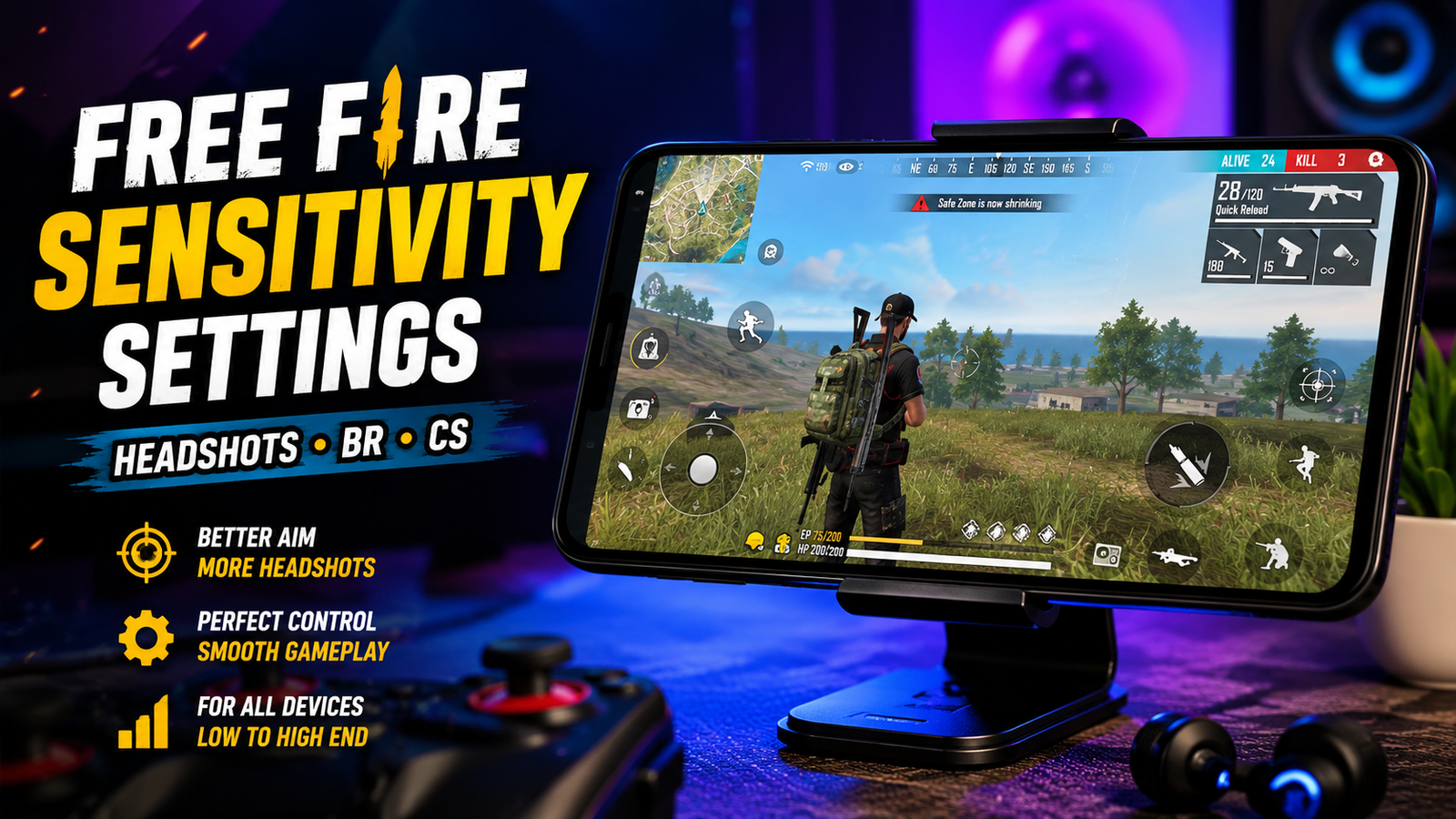
If you have ever copied another player’s exact sensitivity numbers and found that they feel completely wrong on your phone, you have already seen the main problem with most Free Fire sensitivity guides: there is no single setup that feels perfect for everyone. Your device, screen size, touch response, FPS stability, DPI/display settings, HUD layout, and play style can all change how the same numbers feel.
This guide gives you a practical starting point for Free Fire sensitivity settings for headshots, Battle Royale (BR), and Clash Squad (CS). Treat the numbers as a baseline to test and fine-tune—not as guaranteed headshot settings.
Quick Answer: Recommended Free Fire Sensitivity
Start with the following range if you want a balanced setup for general play on a reasonably capable phone:
| Setting | Starting Range |
|---|---|
| General | 90–100 |
| Red Dot | 75–85 |
| 2x Scope | 60–70 |
| 4x Scope | 40–50 |
| Sniper/AWM Scope | 15–25 |
| Free Look | 75–85 |
These are starting ranges, not universal “best” numbers. If your aim overshoots targets, reduce the relevant setting gradually. If movement feels too slow, increase it in small steps and retest.
What Does Sensitivity Do in Free Fire?
Sensitivity controls how much your camera and crosshair respond to your finger movement. Higher sensitivity allows faster camera movement with smaller finger motions, while lower sensitivity requires a larger, slower movement for the same camera change.
- Higher sensitivity: faster turns and quicker close-range reactions, but more risk of overshooting.
- Lower sensitivity: easier small corrections and steadier long-range control, but slower reactions.
- Very high sensitivity: can make the crosshair difficult to control during fast fights.
- Very low sensitivity: can make quick drag movements feel slow or require more finger travel.
The goal is not the highest possible number. The goal is a setting that lets you move quickly while still stopping the crosshair where you want it.
Best Sensitivity for Headshots
Headshot consistency does not come from one magic sensitivity number. It comes from the combination of General sensitivity, Red Dot sensitivity, crosshair placement, drag control, fire-button position, and practice.
- General: affects overall camera movement and how quickly you can turn toward a target.
- Red Dot: controls movement while using the red-dot sight and is often kept somewhat lower than General for finer corrections.
- Drag control: a controlled upward movement can help you adjust aim while firing, but the correct motion depends on your sensitivity and device.
- Fire-button position: should let your thumb or finger move naturally without stretching or hitting other controls.
Practice tip: use Training mode and repeat the same short, controlled drag at your chosen sensitivity. Build consistency before changing the numbers again.
Best Sensitivity for One-Tap and Drag Shots
One-tap shots are not simply a sensitivity trick. Crosshair placement, timing, weapon behavior, distance, and practiced finger movement all matter.
- Keep your crosshair near the target’s upper body or head level when possible.
- Use shorter, quicker corrections for close-range fights.
- Use smoother movements when tracking targets at medium range.
- Adjust sensitivity gradually instead of making large jumps.
There is no sensitivity setting that guarantees one-tap headshots. A stable setup that you understand is usually more useful than constantly copying new numbers.
Best Sensitivity for BR Mode
Battle Royale involves a wider range of distances than close-range Clash Squad fights. Your setup therefore needs to balance quick reactions with controlled scope movement.
- General: around 85–100 is a useful starting range for mixed-distance fights.
- Red Dot: slightly lower than General can make mid-range corrections easier to control.
- 2x: lower than Red Dot for more deliberate tracking.
- 4x: lower again because small movements become more noticeable at higher magnification.
- Sniper/AWM: a lower setting can make fine long-range corrections easier.
Best Sensitivity for Clash Squad (CS)
Clash Squad commonly produces faster close-to-mid-range engagements, so many players prefer a somewhat faster General and Red Dot response than they use for long-range BR play.
- Test a slightly higher General setting if your turns feel too slow.
- Keep Red Dot fast enough for close-range corrections but controlled enough to stop on target.
- Practice drag shots with the weapons you actually use in CS.
- Do not raise every scope setting simply because General feels slow.
Sensitivity Settings for Different Devices
RAM does not determine sensitivity by itself. Chipset/GPU performance, FPS stability, touch response, screen size, display behavior, background activity, and heat can all affect how responsive a game feels.
2GB RAM Phones
Performance can be less consistent on very low-memory devices. Start conservatively around the lower end of the General range and prioritize stable control over maximum speed. If FPS is unstable, changing sensitivity will not solve the underlying performance problem.
3GB RAM Phones
Use the main baseline as a starting point, then test in Training mode. If frame rate fluctuates during fights, solve the performance issue before making large sensitivity changes.
4GB RAM Phones
There is generally more room for stable gameplay, but the processor, GPU, display, and thermal behavior still matter. Start with the baseline table and adjust one setting at a time.
6GB+ RAM Phones
RAM is less likely to be the limiting factor. If the same sensitivity still feels inconsistent, investigate FPS stability, touch response, screen behavior, background apps, or other device factors instead of assuming you need more RAM.
DPI and Free Fire Sensitivity
DPI is often discussed in Free Fire communities, but it should not be treated as a magic aim setting. On Android, display density and related system behavior can change how the interface and touch interactions feel, while Free Fire’s own sensitivity controls how the game responds to your movement.
- Higher DPI is not automatically better. It does not guarantee better aim or headshots.
- Changing DPI can change the overall feel of the interface and controls.
- If you experiment with DPI, change it carefully and test it before changing in-game sensitivity again.
- Changing DPI and sensitivity at the same time makes it difficult to identify which change helped or hurt.
Best Fire Button Size for Headshots
The fire button affects how naturally you can drag while shooting. There is no universal perfect size, because hand size, grip, screen size, and HUD layout differ between players.
- Larger button: gives you more touch area and may feel easier for drag movements.
- Smaller button: can leave more screen space but gives you less margin for error.
- Placement: put it where your finger can reach naturally without stretching.
- Drag space: leave enough room around the button for the movement you actually use.
Test two or three sizes in Training mode instead of changing the button repeatedly during ranked matches.
HUD Layout and Sensitivity
Sensitivity and HUD layout work together. Even good sensitivity can feel awkward if the buttons force you into uncomfortable finger movements.
- Place the fire button where an upward drag feels natural.
- Keep the aim/scope control easy to reach without disrupting your grip.
- Separate movement controls from buttons that you frequently press during fights.
- Keep important controls reachable so you do not have to stretch across the screen.
Quick Diagnosis: Is It Sensitivity or Something Else?
| What you notice | What to check first |
|---|---|
| Crosshair regularly flies past targets | Relevant sensitivity may be too high |
| Aim feels slow and requires excessive finger travel | Relevant sensitivity may be too low |
| Aim becomes inconsistent during intense fights | Check FPS/device performance |
| Same settings feel different on another phone | Check screen, touch response, FPS and display behavior |
| Long-range aim feels shaky | Test lower scope sensitivity |
| Enemies appear to react late or teleport | Check network/ping rather than sensitivity |
How to Find Your Perfect Sensitivity
- Start with the baseline from the table above.
- Test in Training mode before using the settings in ranked matches.
- Adjust General first until basic camera movement feels comfortable.
- Adjust Red Dot next for small aiming corrections.
- Test 2x, 4x and Sniper separately.
- Change one setting at a time.
- Play several matches before judging a new setup.
- Keep the setting that feels consistent, not simply the one that feels fastest.
Sensitivity Mistakes Players Should Avoid
- Copying another player’s settings without adapting them to your device.
- Changing sensitivity after every bad match.
- Using extreme values just because they look impressive in a video.
- Ignoring FPS drops while trying to fix aim.
- Ignoring touch-response problems or a damaged/worn screen protector.
- Changing DPI and sensitivity at the same time.
- Assuming sensitivity alone creates headshots.
How FPS and Device Performance Affect Sensitivity
A sensitivity setting cannot compensate for unstable performance. If the game drops frames during intense fights, your aim can feel delayed or inconsistent even when your sensitivity is unchanged.
If your aim is mostly fine in Training mode but becomes unpredictable when several players, effects, or gunfire appear on screen, investigate FPS and device performance before repeatedly changing sensitivity.
FAQ
What is the best sensitivity for Free Fire headshots?
There is no universal number that guarantees headshots. A General setting around 90–100 and Red Dot around 75–85 is a reasonable starting point, but your final settings should be adjusted to your device and control style.
What sensitivity is best for one-tap?
One-tap performance depends on crosshair placement, timing, weapon control and practiced movement as much as sensitivity. Start with a moderate setup and adjust gradually.
Does higher sensitivity improve headshots?
Not automatically. Higher sensitivity can make fast turns easier, but it can also increase overshooting. The best setting is one you can control consistently.
What is the best sensitivity for Clash Squad?
Many players prefer a somewhat faster General and Red Dot response in CS because engagements are often closer and faster. Use the baseline as a starting point and fine-tune it in Training mode.
What is the best sensitivity for BR?
BR usually benefits from a balanced General setting and progressively lower scope sensitivities for more controlled long-range aiming.
Does DPI improve Free Fire aim?
DPI can change how the device and interface feel, but it does not automatically improve aim or guarantee headshots. If you experiment with it, change it separately from in-game sensitivity and test the result.
Is sensitivity different on low-end phones?
It can feel different because FPS stability, touch response, screen behavior and hardware performance vary. Confirm stable performance before making large sensitivity changes.
How often should I change my sensitivity?
Only when you have a clear reason. Frequent changes prevent your muscle memory from adapting and make it harder to judge whether a setting actually works.
Why does the same sensitivity feel different on another phone?
Screen size, touch response, FPS stability, display behavior and other device differences can change how the same in-game value feels.
Final Verdict
There is no universal Free Fire sensitivity settings configuration that works perfectly for every player. Start with the baseline ranges in this guide, test them in Training mode, and make small changes one setting at a time.
Pay attention to FPS stability and touch response as well as sensitivity. If the device is dropping frames or the input feels inconsistent, changing sensitivity repeatedly will not fix the underlying problem.
Most importantly, treat sensitivity as a tool for improving control—not a shortcut to guaranteed headshots. Consistent practice, crosshair placement, positioning, and game sense still matter.