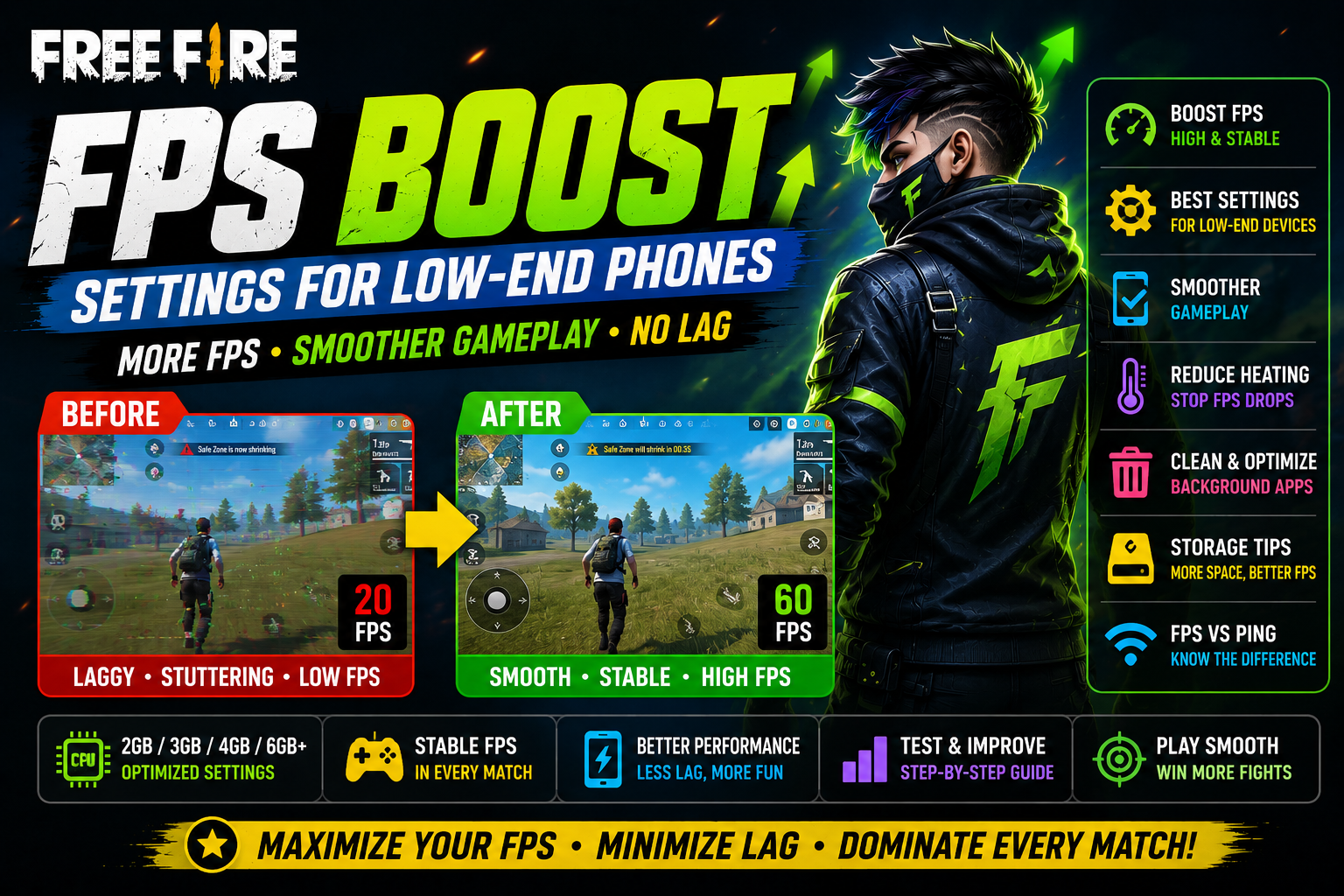
Low-end phones don't struggle with Free Fire because of one single flaw — it's usually a combination of limited GPU power, thermal limits, and background clutter all working against you at once. That's why chasing the highest possible FPS number rarely helps as much as players expect. A free fire fps boost isn't about hitting some peak number for a few seconds; it's about holding a stable, consistent frame rate through an entire match, especially during the intense fights where drops actually cost you. This guide focuses specifically on frame rate stability — not general lag, and not network issues, which are covered separately.
n
n
Quick FPS Boost Settings
n
| Setting Recommended Approach Why | ||
|---|---|---|
| Graphics quality | Set to Low or Smooth on weaker devices | Reduces GPU workload, which is often the main bottleneck |
| FPS option | Choose the highest setting your device can sustain, not just reach briefly | Prevents drops mid-fight when the game can't maintain a higher target |
| Shadows | Turn off where possible | Shadows are a common hidden FPS cost with little gameplay benefit |
| High-resolution options | Avoid on low-end devices | Higher resolution directly increases GPU load |
| Auto-adjust graphics | Enable if available | Lets the game scale settings dynamically based on real-time performance |
| Background apps | Close before playing | Frees CPU/RAM/GPU resources the game needs |
| Battery mode | Test normal/performance mode if available | Some battery-saving modes cap CPU/GPU performance |
| Storage | Keep meaningful free space available | Low storage can slow overall device responsiveness |
| Device temperature | Let the phone cool before long sessions | Heat triggers automatic performance throttling |
n
These are starting points — the right combination depends on your specific chipset, GPU, and how your device behaves under sustained load.
n
What Causes Free Fire FPS Drops?
n
It helps to separate these terms, since they're often lumped together but come from different causes:
n
- Low FPS — your frame rate is consistently below what feels smooth, even in calm moments like walking or looting.
- FPS drops — your frame rate is generally fine but dips sharply during specific moments, usually intense fights with multiple players and effects on screen.
- Stuttering — brief freezes or jerky movement, often tied to the same causes as FPS drops but felt more as a jarring interruption than a smooth decline.
- Network ping — a completely separate issue related to your connection to the game server, not your device's rendering performance. High ping can make the game feel laggy even when your FPS is perfectly stable.
- Overheating — when your device's temperature rises enough to trigger automatic performance throttling, which shows up as FPS drops that get progressively worse the longer you play.
n
Knowing which of these you're actually experiencing determines which fix will help — a graphics setting change won't fix high ping, and a network fix won't fix a genuinely underpowered GPU.
n
Best Free Fire Graphics Settings for Low-End Phones
n
On weaker hardware, the goal shifts from "how good can it look" to "how consistent can it run."
n
- Lower graphics quality reduces the amount of detail your GPU needs to render every frame, which is usually the single most effective change on low-end devices.
- Disabling shadows and extra visual effects where the game allows removes additional GPU load without meaningfully affecting your ability to see or react to enemies.
- Avoiding high-resolution rendering options keeps the number of pixels being processed lower, directly reducing GPU strain.
n
Not every phone needs identical settings — a device with a weaker GPU but decent RAM might handle graphics quality differently than one with the opposite balance. Test incrementally rather than assuming a fixed "best" configuration exists for every device.
n
Best FPS Setting to Use
n
Choosing an FPS target isn't just about picking the highest number available — it's about picking the highest number your device can actually hold consistently.
n
- Stable FPS vs. peak FPS — a device that hits 60 FPS during calm moments but crashes to 20 during a firefight is providing a worse experience than one holding a steady 30 throughout. Consistency matters more than peak numbers.
- Heat builds up faster at higher FPS targets, since your GPU is working harder more often.
- Battery drain increases similarly — higher sustained FPS targets pull more power continuously.
- Thermal throttling is the mechanism that eventually forces your FPS down anyway if you set a target your device can't sustain, so setting an unrealistic FPS target often backfires within the first several minutes of play.
n
A practical approach: pick a moderate FPS setting, play several full matches, and only raise it if your device holds that level consistently without heat becoming a factor.
n
FPS Boost for 2GB RAM Phones
n
Realistically, 2GB RAM phones face genuine hardware limitations that no setting fully overcomes. That said, these steps help get the most consistent performance available:
n
- Close background apps completely before launching the game — even lightweight apps compete for the limited memory available.
- Reduce graphics load to the lowest available settings, since GPU headroom is typically very limited on this tier.
- Keep storage space available, since a nearly full device can slow overall system responsiveness.
- Avoid overheating by taking breaks during longer sessions, since thermal throttling compounds an already tight performance budget.
- Restart the device periodically, especially after long play sessions or heavy multitasking earlier in the day.
n
It's worth being honest: 2GB RAM phones won't reach high, consistently smooth FPS regardless of settings — the realistic goal is the most stable performance available within that hardware's limits.
n
FPS Boost for 3GB and 4GB RAM Phones
n
This tier has more flexibility, but it's worth repeating that chipset and GPU power often matter more than the RAM number alone. Two phones with the same RAM can perform very differently depending on their processor.
n
- At 3GB, background app discipline still matters significantly — closing unused apps before playing remains one of the more impactful free adjustments.
- At 4GB, you generally have more headroom to test slightly higher graphics settings, but it's still worth confirming stability over several matches rather than assuming higher settings will hold.
- On both tiers, if FPS still feels inconsistent despite conservative settings, the chipset itself — not the RAM amount — is more likely the limiting factor.
n
FPS Boost for 6GB+ Phones
n
More RAM doesn't automatically translate into higher or more stable FPS. If you're on a 6GB+ device and still experiencing drops, look beyond RAM:
n
- Chipset age and capability matter more here — some older 6GB+ devices still have modest GPUs relative to current game demands.
- GPU power specifically determines how well the device handles graphics rendering, independent of how much RAM is available.
- Thermal limits can still throttle performance even on capable hardware if the device runs hot for extended periods.
- Game settings pushed too high for even a strong device can still cause drops during the most demanding moments.
- Background processes — including ones you might not expect, like cloud backup or auto-updating apps — can still eat into available resources regardless of total RAM.
n
How to Reduce FPS Drops During Matches
n
- Close unnecessary background apps before starting a session, not just once at the start of the day.
- Avoid playing while the phone is overheating — if it already feels warm before you start, let it cool first.
- Use appropriate graphics settings for your specific device tier rather than the highest available options.
- Keep enough free storage so the system has room to manage temporary files and cache efficiently.
- Avoid unnecessary overlays like floating chat heads or screen recording tools running simultaneously.
- Use stable device performance settings, testing whether your phone's normal or performance mode (where available) makes a meaningful difference.
- Test changes one at a time so you can actually tell what helped rather than guessing.
n
Free Fire FPS Boost and Storage
n
Storage condition affects overall device performance more broadly than people often expect. When a device's storage runs close to full, the system has less room to manage temporary files, app caches, and background operations efficiently, which can contribute to general slowdowns — including in-game stutters.
n
There's no verified specific amount of free space that guarantees a particular FPS improvement, and claims like "free up exactly 10GB for X extra frames" aren't something that can be reliably promised. The practical takeaway is simpler: keep a reasonable buffer of free storage, avoid letting your device run nearly full, and treat storage management as one part of overall device health rather than a direct FPS dial.
n
Battery Saver vs Performance Mode
n
Many Android phones offer some form of battery saver and performance (or "normal") mode, and the difference matters for gaming:
n
- Battery saver modes often reduce CPU/GPU clock speeds to extend battery life, which can directly cap the frame rate your device is capable of reaching — even if your in-game settings suggest otherwise.
- Performance or normal mode typically allows your hardware to run at its intended capability, which is usually preferable during active play sessions if battery life isn't the priority.
- Test both if your device offers them, since the actual impact varies by manufacturer and device.
n
This isn't about disabling important safety protections — thermal protection and battery health safeguards should stay active regardless of which mode you choose. The goal is simply confirming whether your device's power-saving settings are unintentionally limiting performance during gameplay.
n
Phone Heating and FPS Drops
n
Thermal throttling is a built-in protection: when your device's internal temperature rises too high, it automatically slows down processing to prevent damage to internal components. The side effect is a drop in FPS, sometimes a significant one, right when you least want it.
n
Common contributors:
n
- Playing while charging — charging itself generates heat, and combining it with the GPU load of active gameplay compounds the problem.
- Hot environments — playing outdoors in direct sun or in a warm room makes it harder for your device to dissipate heat naturally.
- Long sessions without breaks give heat more time to build up progressively.
- Direct heat exposure, like leaving your phone in direct sunlight between matches, adds to the problem before you even start playing.
- Cases that trap heat — some phone cases, especially thick or fully enclosed ones, restrict natural heat dissipation.
n
Practical steps: avoid charging while playing extended sessions if you notice heat becoming an issue, take short breaks every 30–45 minutes, remove restrictive cases during play if heat is a consistent problem, and avoid direct sunlight on the device both during and between matches.
n
Background Apps and FPS
n
Background apps quietly consume CPU, RAM, and sometimes GPU resources even when you're not actively using them — resources your game needs to render frames consistently.
n
Simple, safe steps:
n
- Manually close apps you're not using before starting a match, rather than assuming they're fully inactive in the background.
- Disable unnecessary auto-sync or background refresh settings for apps you don't need running during play (cloud backup, social media auto-refresh).
- Avoid running screen recording, streaming, or overlay apps simultaneously unless your device has clearly demonstrated it can handle the extra load.
n
Avoid relying on third-party "cleaner" or "booster" apps — many of these provide little real benefit and some request excessive permissions or run their own background processes, working against the exact problem you're trying to solve.
n
FPS Boost Settings by Device Level
n
| Device Level Suggested Approach Main Priority | ||
|---|---|---|
| Very Low-End | Lowest graphics settings, aggressive background app management | Stability over visual quality |
| Low-End | Low graphics, conservative FPS target, regular breaks for heat | Consistency during fights |
| Budget Mid-Range | Low-to-medium graphics, moderate FPS target, monitor heat during long sessions | Balance between visuals and stability |
| Mid-Range | Medium graphics with room to test higher FPS targets | Sustained performance under combat load |
n
No specific FPS number is guaranteed at any tier — actual results depend on your individual chipset, GPU, and how well-maintained your device is.
n
How to Test Your FPS Properly
n
- Record your current settings so you have a clear baseline to compare against.
- Enter the same training/match conditions each time you test, to keep comparisons fair.
- Test movement — running, jumping, rotating the camera — in a calm scenario.
- Test combat specifically, since this is where drops matter most and are most noticeable.
- Test after 10–15 minutes of continuous play, not just in the first minute, since heat-related throttling takes time to appear.
- Check whether the phone heats up noticeably during this window.
- Change one setting based on what you observed.
- Test again under the same conditions as before.
- Keep the setting only if stability improves — a setting that raises peak FPS but doesn't hold up in combat isn't actually an improvement.
n
Remember that peak FPS and sustained FPS are different measurements — a device briefly hitting a high number means little if it can't maintain anything close to that number once combat and heat come into play.
n
FPS Troubleshooting Table
n
| Problem Likely Cause What to Try | ||
|---|---|---|
| FPS suddenly drops | Background app activity or a spike in on-screen effects | Close background apps; lower graphics settings |
| FPS drops after several matches | Thermal throttling from accumulated heat | Take a break; avoid charging while playing |
| Phone becomes very hot | Sustained high GPU load, possibly combined with charging | Lower graphics/FPS target; remove restrictive case; avoid charging during play |
| Game stutters despite good internet | This points to an FPS/performance issue, not a network one | Review graphics settings and background apps rather than network settings |
| FPS is low from the start | Device/chipset limitations, or overly ambitious graphics settings | Lower graphics quality and FPS target to match device capability |
| FPS becomes worse while charging | Heat generated by charging compounding GPU load | Avoid playing while charging, especially fast-charging |
| Performance changes after an update | Game or system update may have shifted resource usage | Check for further updates; review settings, since defaults sometimes reset |
n
FPS vs Ping: Know the Difference
n
These two get confused constantly, but they're separate problems requiring separate fixes.
n
FPS problem symptoms:
n
- Visual stuttering or jerky screen movement
- Uneven frame pacing even when your own inputs are registering correctly
- Frame drops specifically during graphically intense moments
n
Ping/network problem symptoms:
n
- Delayed actions — your inputs register late relative to what's happening on screen
- Enemies appearing to teleport or move unnaturally
- General connection instability, disconnects, or rubber-banding
n
Changing graphics settings will not fix a bad internet connection, and improving your network won't fix a genuinely underpowered GPU. Identifying which category your issue falls into is the first step to fixing it effectively.
n
Free Fire Sensitivity Settings
n
Common FPS Boost Mistakes
n
- Using extreme graphics settings because they look impressive, without testing whether your device can actually sustain them.
- Installing random booster apps that promise dramatic FPS gains — most provide minimal real benefit and some carry genuine risk.
- Expecting RAM alone to increase FPS when chipset and GPU power are often the real limiting factor.
- Playing while overheating, which accelerates thermal throttling rather than avoiding it.
- Changing multiple settings simultaneously, making it impossible to know which change actually helped.
- Chasing peak FPS instead of stable FPS, which leads to a worse in-match experience even if the number looks better on paper.
- Ignoring chipset/GPU limitations and assuming any performance issue can be solved purely through settings.
n
FAQ
n
How can I increase Free Fire FPS on a low-end phone?
n
Lower your graphics settings, close background apps, keep some free storage available, and choose an FPS target your device can sustain rather than the highest option available. There's no guaranteed number, but these steps typically improve consistency.
n
What are the best Free Fire FPS settings?
n
The best settings are the ones your specific device can hold steadily through combat, not necessarily the highest available. Start conservative, test in real matches, and raise settings gradually only if stability holds.
n
Does lowering graphics increase FPS?
n
Generally yes, since lower graphics quality reduces the workload on your device's GPU, which is often the primary bottleneck on low-end and budget devices.
n
Does RAM increase Free Fire FPS?
n
Not directly by itself. RAM helps with multitasking and loading smoothness, but FPS is more strongly influenced by your chipset and GPU. More RAM alone won't fix a weak GPU's frame rate ceiling.
n
Why does Free Fire FPS drop after playing for a while?
n
This is often thermal throttling — as your device heats up during extended play, it automatically reduces performance to protect internal components, which shows up as declining FPS over time.
n
Does playing while charging reduce performance?
n
It can, since charging generates additional heat that compounds the heat already produced by active gameplay, making thermal throttling more likely.
n
Can high ping cause FPS drops?
n
No — high ping and FPS are separate issues. Ping affects how quickly your actions register with the game server, while FPS reflects how smoothly your device renders the game. A stuttering feeling with good internet points to FPS, not ping.
n
How do I get more stable FPS in Free Fire?
n
Focus on consistency: appropriate graphics settings for your device, minimal background app activity, adequate free storage, and awareness of heat during longer sessions. Testing changes one at a time helps you find what actually works for your specific phone.
n
Final Verdict
n
A reliable free fire fps boost comes from prioritizing stable performance over chasing the highest possible number. Lower graphics settings where needed, manage background apps and storage, and pay close attention to heat during longer sessions — these adjustments matter more on low-end devices than any single "magic" setting. Remember that your chipset and GPU set a real ceiling that software tweaks can't fully overcome, and that no booster app or hack is needed, or genuinely helpful, to get there. Test changes one at a time, judge them over several full matches, and settle on the configuration that holds up consistently — not just the one that looks best for a few seconds.