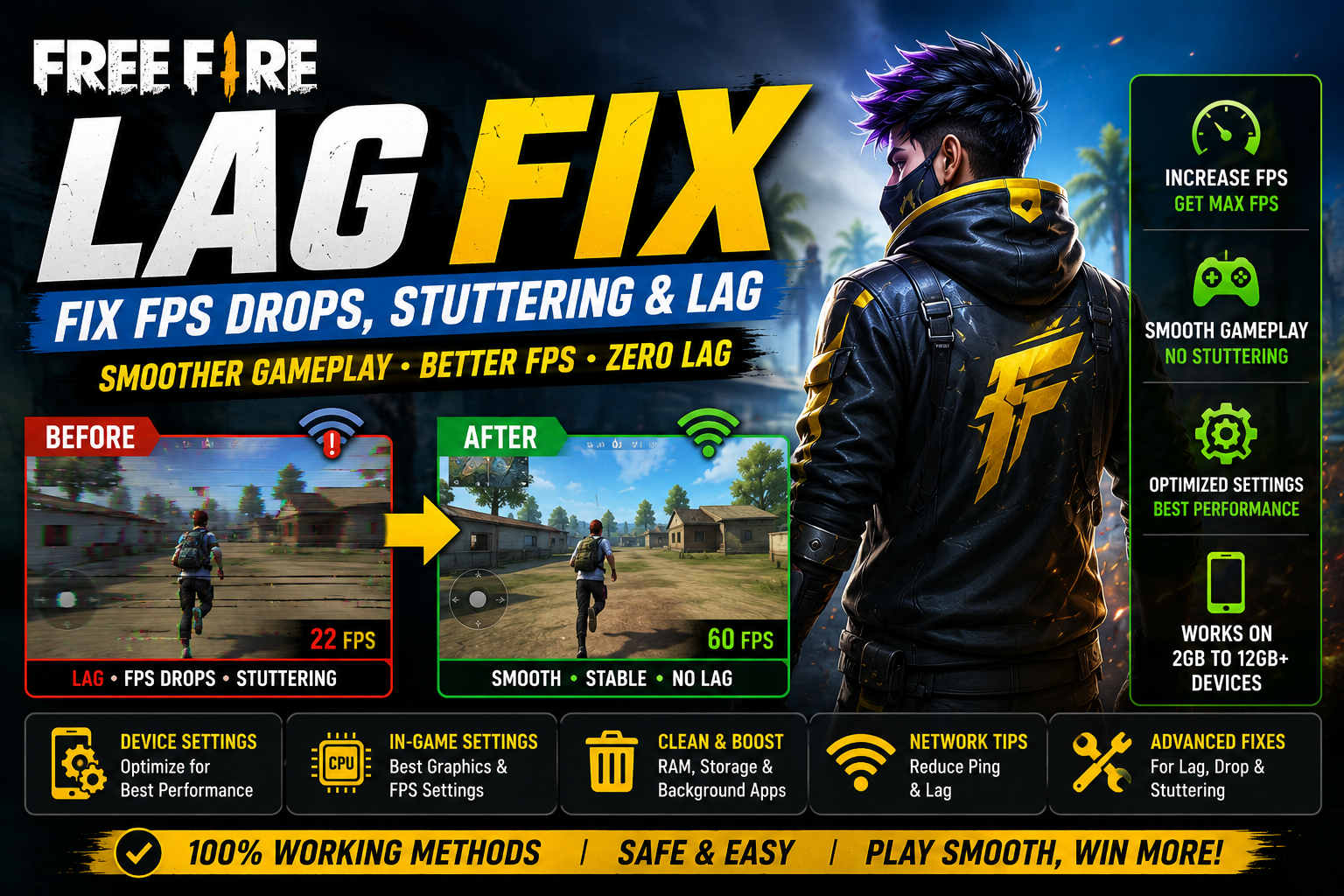
If your matches keep freezing at the worst possible moment, or your frame rate tanks right when a gunfight starts, you’re not alone. A reliable free fire lag fix usually isn’t one magic setting — it’s a combination of graphics tweaks, device housekeeping, and network fixes, applied in the right order. This guide walks through exactly what to check, why it matters, and what actually helps versus what’s just noise.
Quick Answer
Before diving into details, here’s the short version:
- Lower your in-game graphics and frame rate settings to match your device’s actual capability.
- Close background apps and free up storage before you play.
- Let your phone cool down if it’s hot — heat is one of the most common hidden causes of FPS drops.
- If matches are laggy but your FPS counter looks fine, the problem is likely your network (ping), not your device.
- Restart your phone and update both Free Fire and your Android system regularly.
- Accept that very low-end or aging devices have hard limits — no setting will make a 1GB RAM phone run like a flagship.
Each of these is explained in more depth below, along with step-by-step fixes.
Why Is Free Fire Lagging?
“Lag” gets used as a catch-all term, but it usually comes from one (or several) of these sources:
- Low RAM – Not enough memory for the game and background apps to run smoothly at once, causing stutters when new assets load.
- Weak or older hardware – An aging chipset or GPU simply can’t process high graphics loads at a stable frame rate.
- Graphics settings set too high – Visual quality that looks great on paper but overloads the device’s GPU.
- FPS instability – The frame rate isn’t just low, it’s inconsistent, jumping up and down, which feels worse than a steady lower FPS.
- Background apps – Social media, browsers, and auto-syncing apps quietly eating RAM and CPU cycles.
- Low storage – When your phone’s storage is nearly full, the system has less room to manage temporary files and cache, which can slow everything down.
- Overheating – Devices throttle (deliberately slow down) performance to protect internal components when they get too hot.
- Software or game issues – Outdated app versions, corrupted cache, or pending system updates.
- Network problems – High ping, unstable Wi-Fi, or poor mobile data causing rubber-banding and delayed hit registration — which feels like lag but isn’t the same as FPS lag.
Understanding which of these applies to you matters, because the fix is different in each case.
Quick Free Fire Lag Fixes
Try these first, in order:
- Restart your phone. This clears background processes and temporary memory clutter — a simple step that solves more than people expect.
- Close background apps before opening Free Fire, especially anything that plays video, syncs photos, or runs in the background by default.
- Lower graphics and frame rate settings in the in-game settings menu (details below).
- Free up storage by removing unused apps, old screenshots, and downloaded files.
- Update the game and your Android system — performance patches are common, and outdated versions can behave worse.
- Check your network if the game itself runs smoothly but movement and shooting still feel delayed.
- Let the device cool down if it feels warm, especially after long play sessions.
Best Free Fire Graphics & FPS Settings
There’s no single “best” setting for every phone — the right combination depends on your hardware. The general idea is to trade visual quality for smoothness on weaker devices, since a stable, lower frame rate is usually easier to play on than a high frame rate that keeps dropping.
For low-end phones:
Keep graphics quality low and frame rate at a conservative level. The goal is stability, not visual detail. Turning off extras like shadows or advanced effects (where available) can also help.
For mid-range phones:
You can usually push graphics quality to medium with a moderate-to-high frame rate. If you notice occasional stutters during intense fights (multiple players, effects, and gunfire at once), step graphics quality back down slightly rather than the frame rate — a consistent frame rate matters more for gameplay than sharper visuals.
For higher-end phones:
Higher graphics and frame rate settings are usually fine, but if you’re recording gameplay, live-streaming, or running other apps in the background, dropping settings one notch can prevent occasional dips during heavy combat.
Whatever tier you’re in, if you experience a drop in FPS after changing a setting, that specific setting is your bottleneck — dial it back rather than guessing at others.
Free Fire Lag Fix for Low-RAM Phones
It’s worth repeating: RAM alone does not determine gaming performance. Chipset and GPU power, storage speed, thermals, background software, and in-game settings all play a role too. That said, RAM is still a common bottleneck, so here’s how to approach it by tier:
2GB RAM:
This is a genuinely tight budget for a game like Free Fire. Keep graphics settings at their lowest, close every unnecessary app, and avoid multitasking while playing. Even with everything optimized, expect some limitations — this is a hardware constraint more than a settings problem.
3GB RAM:
A bit more breathing room, but background apps still matter a lot here. Disable auto-sync and background refresh for apps you’re not using, and keep graphics on low-to-medium.
4GB RAM:
This is generally a reasonable baseline for smoother play, assuming the chipset isn’t very old. Medium graphics settings are usually workable, but keep an eye on thermals during long sessions.
6GB+ RAM:
RAM is less likely to be your limiting factor here — if you’re still lagging, look more closely at chipset age, storage space, background processes, or network issues rather than assuming more RAM would fix it.
How to Fix Free Fire FPS Drops & Stuttering
FPS drops feel like brief freezes or jerky movement, especially during firefights, when parachuting into a busy area, or when many players and effects are on screen at once. This is different from general slowness — it’s a sudden dip from your normal frame rate.
Common causes:
- Graphics settings pushed slightly beyond what your device can sustain
- Background apps competing for CPU/GPU resources at the exact moment the game needs them
- Thermal throttling after extended play
- Temporary software glitches or outdated game/app versions
Practical fixes:
- Lower graphics quality one step at a time and test in a match — small adjustments are easier to evaluate than drastic changes.
- Cap your frame rate at a level your device can hold consistently, rather than the highest available option.
- Clear the game’s cache (through Android’s app settings) if stuttering appeared suddenly after a smooth period.
- Avoid running any app in the background during matches, even ones that seem lightweight.
- Give the phone a break if it’s warm — stuttering often gets worse as temperature rises during a session.
How to Fix Free Fire High Ping
High ping and FPS lag are often confused, but they’re different problems with different fixes.
- FPS lag is about how smoothly the game renders — it’s a local, on-device issue.
- High ping is about the delay between your device and the game server — it affects how quickly your actions (shooting, moving) register online, even if your FPS counter looks fine.
Signs of a ping problem: your own screen looks smooth, but enemies appear to teleport, your shots don’t register properly, or you get killed after already taking cover on your screen.
Practical network fixes:
- Switch between Wi-Fi and mobile data to see which gives a more stable connection where you are.
- Move closer to your Wi-Fi router, or reduce the number of devices using the network at once.
- Close apps that use significant bandwidth in the background (downloads, streaming, cloud backups).
- Restart your router if you’re on Wi-Fi and the connection has been unstable for a while.
- If your mobile signal is weak, moving to a different spot in your home can make a noticeable difference.
How to Stop Free Fire From Overheating
Overheating isn’t just uncomfortable to hold — it directly causes performance problems, because most phones automatically throttle (reduce) performance when internal temperatures get too high, as a protective measure.
What makes it worse:
- Playing while charging, since charging itself generates heat
- Heavy background processes running alongside the game
- High graphics settings pushing the GPU harder than necessary
- Playing in a hot room or direct sunlight
- Long, uninterrupted play sessions without breaks
What helps:
- Avoid playing while the phone is charging, especially fast-charging, if you notice heat is an issue.
- Take short breaks every 30–45 minutes during long sessions to let temperatures come back down.
- Remove thick phone cases while playing, since they can trap heat.
- Lower graphics settings, which reduces GPU workload and heat generation.
- Play in a cooler environment where possible, and avoid direct sunlight on the device.
If your phone is consistently hot within minutes of starting a match even with settings turned down, that points toward an aging battery, dust buildup, or a hardware issue worth having checked rather than something a setting can fix.
Android & Device Optimization
A few general Android habits go a long way toward consistent performance:
- Close unnecessary background apps before each session, not just once a day.
- Free up storage — aim to keep a reasonable chunk of free space rather than running near-full, since low storage can slow down general device performance.
- Restart your phone regularly, especially if you play for long stretches daily.
- Keep the game and your Android system updated, since performance fixes are often included in updates.
- Avoid unnecessary background activity like auto-backups or app updates scheduled during your usual play times.
What NOT to Do When Trying to Fix Free Fire Lag
In the search for a quick fix, it’s tempting to try shortcuts — don’t. These come with real risks and rarely deliver what they promise:
- Modified APKs – Unofficial versions of the game can carry malware and typically violate the game’s terms of service, risking your account.
- Cheats or config hacks – Beyond being unfair and against the rules, these often destabilize the game further rather than fixing performance.
- Suspicious “booster” or “lag fix” apps – Many of these are ineffective at best, and some request excessive permissions or contain malware.
- Fake FPS claims – If a tool claims to unlock frame rates or performance your device isn’t capable of, treat it with skepticism.
- Unsafe downloads – Only install updates and tools from official app stores.
- Sharing account credentials – Never share your login with third parties promising to “optimize” or “boost” your account — this is a common way accounts get compromised.
When Your Phone Is the Limiting Factor
It’s worth being honest here: settings and optimization can only do so much. If your device is several years old, has a low-end chipset, or very limited RAM, there’s a ceiling on how smooth the game can realistically run — no configuration will fully overcome that. In these cases, the goal shifts from “maximum performance” to “most stable performance,” which usually means accepting lower graphics and frame rate settings in exchange for consistency, rather than chasing settings that look better but stutter constantly.
FAQ
Why does Free Fire lag on 2GB RAM?
With only 2GB of RAM, there’s very little spare memory for the game and Android’s background processes to share, which often causes stutters when new game assets need to load. Keeping graphics low and avoiding any multitasking helps, but some limitation is expected on this tier of hardware.
Why does Free Fire lag even with good internet?
If your internet is fine but the game still feels laggy, the cause is more likely FPS-related — tied to your device’s graphics settings, background apps, or heat — rather than your connection. Good internet solves ping-related issues, not device performance issues.
How can I reduce FPS drops?
Lower your graphics settings, cap your frame rate at a level your device can sustain, close background apps, and keep the phone cool. Clearing the game’s cache can also help if drops started suddenly.
Does lowering graphics reduce lag?
It can significantly help with FPS-related lag and stuttering, since it reduces the load on your device’s GPU. It won’t fix high ping, though, since that’s a network issue rather than a rendering one.
Can overheating cause FPS drops?
Yes. Many devices automatically throttle performance when they get too hot to prevent damage, which directly causes frame rate drops during play.
Can a phone cooler fix Free Fire lag?
A cooler can help manage heat during long sessions, which may reduce thermal throttling. However, it won’t fix lag caused by low RAM, weak hardware, high ping, or overly demanding graphics settings — it addresses one specific cause, not all of them.
Final Verdict
There’s no single free fire lag fix that works for every device — performance depends on a mix of graphics settings, RAM, chipset strength, storage, thermals, and network quality. The most reliable approach is to work through the causes systematically: optimize your settings for your specific hardware, keep your device cool and uncluttered, and separate network issues (ping) from performance issues (FPS). Avoid shortcuts like modified APKs or unofficial booster apps, since they risk more than they fix. With the right combination of adjustments, most players can get noticeably smoother, more stable gameplay — even if a very low-end device will always have some limits software alone can’t remove.