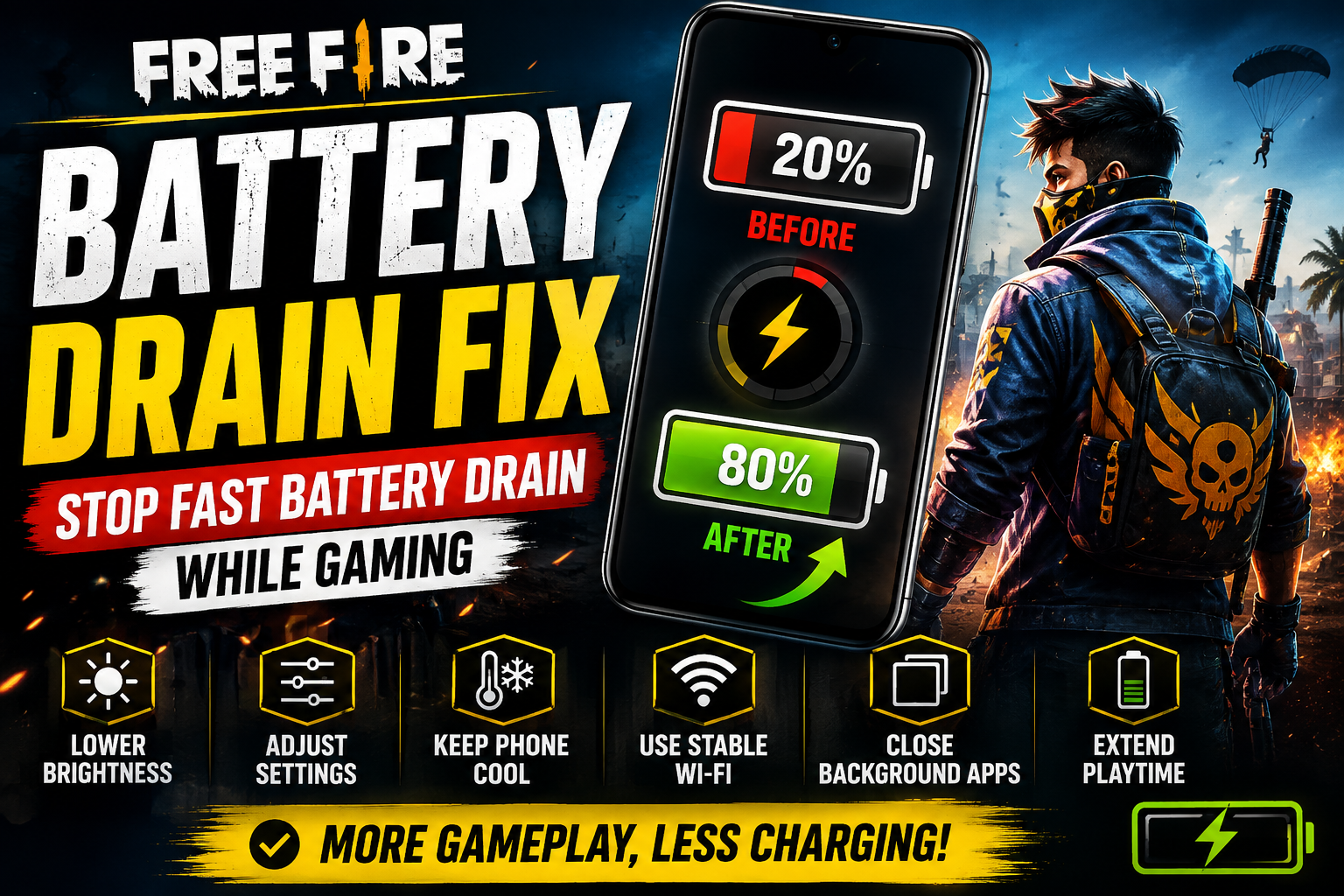
Launching Free Fire and jumping into a high-stakes match is an intense experience for your smartphone. However, few things are as frustrating as watching your battery indicator plunge from 80% to 20% in just a few rounds. Rapid battery consumption forces players into inconvenient charging routines, causes thermal slowdowns, and limits mobile gaming sessions.
It is important to understand that fast battery drain during a match does not automatically mean your phone’s battery is broken or defective. Modern mobile battle royale games are highly complex software tasks. When Free Fire runs, your smartphone coordinates its central processor, graphics rendering engine, high-brightness display, wireless network modems, and audio speakers simultaneously.
Because gaming requires significantly more hardware effort than scrolling social media or streaming music, higher power consumption is a normal physical reality. However, by understanding what drives energy usage on your device, you can eliminate unnecessary power waste, manage device temperatures, and enjoy longer gaming sessions safely.
Quick Answer: How to Reduce Free Fire Battery Drain
If you need immediate steps to extend your battery runtime while playing Free Fire, use this practical optimization checklist:
1. Lower Screen Brightness: Reduce your display brightness to a comfortable, readable level rather than playing at 100% maximum brightness.
2. Cap Unnecessary Frame Rates: Avoid forcing maximum High FPS options if your device struggles with excessive power draw or heat.
3. Adjust In-Game Graphics: Set graphical quality to a moderate level to reduce continuous GPU processing demands.
4. Restrict Background App Activity: Close resource-intensive background applications like social media platforms, cloud sync tools, and video streaming apps before launching the game.
5. Keep the Phone Cool: Play in a cool, well-ventilated environment and avoid direct sunlight to prevent thermal battery drain.
6. Use a Stable Wi-Fi Connection: Connect to a strong, stable local Wi-Fi network instead of relying on a weak cellular data signal.
7. Pause Background Downloads: Stop active app store updates, system downloads, and large media syncing during gaming sessions.
8. Select a Standard Refresh Rate: Match your display’s system refresh rate (60Hz vs. 90Hz/120Hz) to a level that balances smoothness with power consumption.
9. Disconnect Unneeded Hardware Accessories: Remove non-essential external dongles or powered accessories that draw power from your phone’s USB port.
10. Avoid Hot Charging Sessions: Avoid playing demanding matches while fast-charging if your phone becomes uncomfortably hot.
Why Does Free Fire Drain Battery So Fast?
To understand why battle royale games consume so much power, consider what happens inside your smartphone during a match. Unlike light applications that only wake up the processor periodically, Free Fire demands continuous, high-performance activity across multiple hardware components at once.
“`
┌──► Central Processing Unit (CPU) ──► Game Logic & Physics
├──► Graphics Processing Unit (GPU) ─► 3D World & Visual Effects
[ Battery Power ] ┼──► High-Brightness Display ──────► Visual Output & High Refresh Rate
├──► Wireless Network Modem ─────────► Constant Data Syncing
└──► Audio Speakers & Haptics ───────► Game Sound & Vibration Feedback
“`
- Processor & Graphics Engines (CPU & GPU): The CPU calculates player positions, physics, combat interactions, and map states. Simultaneously, the GPU renders millions of 3D polygons, textures, lighting shaders, and particle effects 60 to 120 times every second.
- The Display Panel: Illuminating millions of pixels continuously—often at elevated brightness levels and higher refresh rates—draws a constant stream of current directly from the battery.
- The Network Modem: Maintaining a continuous, low-latency data connection over Wi-Fi or cellular networks requires the wireless modem to operate in a high-power state to prevent packet loss.
- Audio & Vibration Systems: Pushing high-volume stereo audio through external speakers and driving internal haptic feedback motors adds a continuous secondary power draw.
- Thermal Management Activity: As components draw power, they generate heat. High internal temperatures increase the electrical resistance of semiconductor circuits, making power delivery slightly less efficient and generating even more waste heat.
What Uses the Most Battery While Playing Free Fire?
Not every phone component consumes power at the same rate. Understanding which hardware features draw the most current helps you make targeted adjustments.
| Component | Why It Uses Power | What You Can Adjust |
|---|---|---|
| Display Panel | Backlighting or illuminating millions of pixels continuously at high brightness. | Reduce display brightness; turn off auto-brightness if it flares to 100%; adjust refresh rate. |
| Graphics Engine (GPU) | Rendering complex 3D environments, character skins, shadows, and particle effects. | Lower in-game graphics quality from Ultra/High to Standard or Smooth. |
| Central Processor (CPU) | Calculating continuous game logic, player hitboxes, physics, and system processes. | Moderate target frame rate settings; close background apps to free up processor threads. |
| Cellular / Wi-Fi Modem | Transmitting continuous real-time data packets to and from game servers. | Play on strong local Wi-Fi; move closer to your router or cell signal to prevent modem strain. |
| High Refresh Rate Display | Updating the visual image 90 to 120 times per second instead of 60 times. | Set display refresh rate to 60Hz or auto-dynamic mode if battery life is your main priority. |
| Background Processes | Syncing emails, cloud photos, social media feeds, and automatic app updates. | Enable device Game Mode or restrict background data and battery permissions for non-essential apps. |
| Audio & Haptic Motors | Driving physical speaker cones and internal vibration motors for sound and hit effects. | Use wired or low-power earphones; lower external speaker volume; reduce haptic intensity. |
Free Fire Battery Drain vs Phone Heating
Battery drain and phone heating are closely linked, but they represent two distinct physical challenges:
“`
High Power Draw ──► Heat Generation ──► Increased Circuit Resistance ──► Higher Battery Drain & Thermal Throttling
“`
1. Power Consumption: The amount of electrical energy pulled from the battery to run your phone’s processor, display, and radios.
2. Heat Generation: Thermal energy created as a natural byproduct of electrical current passing through internal microprocessors and battery cells.
When your phone operates under a heavy graphical load, the CPU and GPU generate significant heat. If this heat cannot dissipate quickly, internal phone temperatures rise. Lithium-ion batteries experience accelerated physical degradation when exposed to elevated temperatures over long periods.
Furthermore, as internal temperatures rise, smartphone operating systems automatically initiate thermal throttling—slowing down processor clock speeds to protect internal hardware. This can result in unexpected frame-rate drops even while battery consumption remains high. Keeping your device cool preserves both your immediate battery charge and its long-term health.
Does Higher FPS Drain More Battery?
Yes, target frame rate is one of the most significant factors influencing battery consumption during gameplay.
Frame rate (measured in Frames Per Second, or FPS) determines how many times the game updates and draws the visual image every second. When you switch from 30 FPS to 60 FPS, or from 60 FPS to 90/120 FPS, you are asking your phone’s processor and graphics engine to calculate and render double the visual data in the exact same timeframe.
“`
[ 30 FPS Target ] ──► Renders 30 frames/sec ──► Moderate GPU Load ──► Lower Power Draw
[ 60 FPS Target ] ──► Renders 60 frames/sec ──► Heavy GPU Load ──► Moderate Power Draw
[ 120 FPS Target ] ──► Renders 120 frames/sec ──► Maximum GPU Load ──► Highest Power Draw
“`
While higher frame rates provide smoother motion tracking and lower input latency, they force the GPU and CPU to operate at higher clock frequencies continuously. If extending your battery life is a priority during a long gaming session, setting your frame rate to a moderate, stable target (such as standard 60 FPS) reduces processor workload and power consumption.
To learn more about optimizing frame rates for smooth gameplay without overloading your phone, read our comprehensive guide to Free Fire FPS Boost.
Do Graphics Settings Affect Battery Drain?
In-game graphics options dictate the visual complexity of every frame rendered by your phone’s GPU. Higher visual settings require more memory bandwidth, more complex shading calculations, and higher power delivery.
| Graphics Setting | Possible Effect on Power | Practical Approach |
|---|---|---|
| Graphics Quality (Smooth / Standard / Ultra) | Higher settings load high-resolution textures, complex lighting, and detailed models, increasing GPU power draw. | Use Standard or Smooth if your goal is extending play time or keeping the phone cool. |
| High Resolution / High HD | Increases the pixel render target, forcing the GPU to process significantly more visual pixels. | Keep at Normal / Standard resolution unless playing on a very large tablet display. |
| Shadows & Environmental Effects | Requires secondary rendering passes for dynamic character and sun shadows, doubling GPU workload. | Turn Shadows OFF to reduce unnecessary graphical overhead and lower thermal build-up. |
| High FPS Toggle | Unlocks higher frame rate caps, keeping processor clock speeds elevated throughout the match. | Balance according to needs: use High FPS for competitive rank, or Normal FPS for casual sessions. |
Lowering visual settings reduces the mathematical workload on your graphics processor, helping lower overall device temperatures and power draw.
Screen Brightness and Battery Drain
The display panel is often the single largest power consumer on a smartphone. Pushing a screen to 100% maximum brightness—especially outdoors under direct sunlight—requires maximum electrical current to drive display backlights or OLED pixels.
“`
[ 100% Max Brightness ] ──► High Current Draw ──► Increased Heat ──► Rapid Battery Drain
[ 40% – 60% Brightness ] ──► Balanced Current ──► Moderate Heat ──► Extended Playtime
“`
- Avoid Unnecessary Maximum Brightness: Indoors, setting your display brightness between 40% and 60% provides excellent visibility while substantially reducing display power usage compared to maximum brightness.
- Manage Auto-Brightness: While auto-brightness is useful for general phone use, ambient light sensors can flare display brightness to 100% if your hand temporarily covers the sensor or if ambient lighting shifts, causing unexpected battery spikes.
- Maintain Visual Comfort: Never dim your display to the point where you strain your eyes or lose sight of opponents in dark areas of the map. Find a comfortable, moderate balance that maintains clear visibility without maxing out display power.
Does 90Hz/120Hz Drain More Battery?
Modern smartphones often feature high refresh rate displays capable of updating at 90Hz, 120Hz, or higher.
Refresh rate refers to how many times per second the physical screen panel refreshes its display image. Running a display at 120Hz requires the display driver hardware and screen panel to process twice as many image cycles as a traditional 60Hz display.
- Visual Smoothness vs. Power: A 120Hz refresh rate makes camera movement and UI scrolling feel fluid. However, driving the screen panel at high refresh rates continuously increases display system power consumption.
- Display Technology Differences: Phones with LTPO (Variable Refresh Rate) displays can automatically drop their refresh rate when static images are shown, mitigating power loss. Traditional high-refresh displays, however, draw a constant higher current whenever high refresh modes are active.
- Practical Advice: If you are away from a charger and need your battery to last as long as possible, switching your device’s system display settings to standard 60Hz mode during gaming sessions can help preserve battery life.
Wi-Fi vs Mobile Data: Which Uses More Battery?
Wireless communication modems consume notable energy during continuous multiplayer gaming, but the power consumption of Wi-Fi versus mobile data depends heavily on signal conditions.
| Connection Type | Possible Battery Factors | Practical Guidance |
|---|---|---|
| Home Wi-Fi |
• Wi-Fi access points are typically nearby.
• Requires lower radio transmission power.
• Generally more power-efficient over long sessions.
| Ideal choice for gaming when close to a stable, low-congestion local router. |
|---|
| —————————————————————————- |
| Mobile Data (4G / 5G) |
• Cell towers may be hundreds of meters away.
• Cellular modems scale up transmission power to maintain links.
• 5G connections can generate additional heat in weak areas.
| Excellent for mobility, but can increase power usage if signal coverage is moderate to weak. |
|---|
Under optimal conditions, playing over a strong local Wi-Fi connection is generally more power-efficient than playing over cellular data. However, a weak Wi-Fi signal can draw just as much power as mobile data as the device attempts to maintain a stable link.
Weak Signal Can Increase Battery Usage
When your smartphone experiences a weak cellular or Wi-Fi signal, its internal modem automatically increases its transmission power to keep data packets from dropping.
“`
[ Strong Signal ] ──► Low Radio Power Output ──► Clean Data Delivery ──► Normal Battery Usage
[ Weak Signal ] ──► Max Radio Power Output ──► Retried Packets ──► High Battery Drain
“`
If you play Free Fire in a basement, inside a thick concrete building, or in a rural dead zone:
- The phone’s wireless modem operates at maximum transmission power continuously.
- The device repeatedly re-transmits lost data packets, increasing processor network tasks.
- Frequent switching between 4G, 5G, or different Wi-Fi bands creates additional modem workload.
If you notice high battery drain paired with network latency, move closer to your Wi-Fi router or relocate to an area with stronger cellular coverage. To resolve connection issues alongside power management, read our complete guide to Free Fire Ping Fix.
Background Apps and Battery Drain
Leaving multiple resource-heavy applications running in the background while playing Free Fire forces your phone’s operating system to split memory resources and CPU cycles.
“`
Available RAM & CPU Threads:
[=== Social Media Sync ===][=== Cloud Uploads ===][=== Free Fire Game Engine ===]
▲
Background apps steal processor cycles and battery power!
“`
- Active Cloud Syncing: Applications uploading photos, syncing large cloud drives, or downloading system files consume both processor time and wireless modem power.
- Social Media & Video Apps: Social networking apps frequently wake up background services to fetch notifications, refresh feeds, and auto-play videos.
- Location Services: Apps actively requesting GPS location tracking in the background draw power through internal positioning sensors.
Best Practice: Before launching Free Fire, use your phone’s task switcher to close unnecessary background apps. However, avoid obsessively clearing lightweight system processes, as force-closing and restarting basic system apps repeatedly can actually consume more power than leaving them idle in RAM.
Should You Use Battery Saver While Playing Free Fire?
Most Android and iOS smartphones feature built-in “Battery Saver” or “Low Power” modes. Using them while gaming involves clear performance tradeoffs.
How Battery Saver Helps:
- Restricts background data access for non-essential applications.
- Reduces display brightness automatically and pauses background cloud syncing.
- Temporarily halts non-critical system updates and location services.
How Battery Saver Can Affect Gameplay:
- Processor Throttling: Many manufacturers limit CPU and GPU clock speeds when Battery Saver is active, which can lead to sudden frame-rate drops or input latency during complex firefights.
- Refresh Rate Capping: Battery Saver modes often force display refresh rates down to 60Hz or lower regardless of your in-game preferences.
- Network Restrictions: Aggressive power-saving policies may restrict background network access, occasionally interfering with voice chat or social features.
> Recommendation: Avoid using standard system Battery Saver modes during competitive or ranked matches if you want peak performance. Instead, use built-in Game Launchers / Game Modes, which optimize background app management specifically for gaming without throttling processing performance.
Is It Safe to Play Free Fire While Charging?
Playing demanding 3D games while your phone is plugged into a charger introduces a physical phenomenon known as pass-through thermal stacking.
“`
[ Fast Charger ] ────► Heat Generated by Battery Charging ──┐
├──► Total Device Temperature Rises!
[ Free Fire Load ] ──► Heat Generated by CPU/GPU Workload ──┘
“`
1. Dual Heat Sources: The battery generates heat as it receives electrical current from the charger. Simultaneously, the CPU and GPU generate heat as they render the game. These two heat sources combine inside the phone’s chassis.
2. Thermal Stress: Excessive heat is the primary accelerator of long-term lithium-ion battery degradation. Operating at high temperatures for extended periods reduces total battery health over time.
3. Performance Impact: When internal temperatures exceed safety thresholds, your phone will automatically throttle graphics performance to cool itself down, causing sudden in-game lag and frame drops.
Safe Charging Practices for Gamers:
- Avoid Gaming During Fast-Charging: If your device supports ultra-fast charging (e.g., 65W+), allow the phone to charge while idle before starting a gaming session.
- Remove Insulating Phone Cases: If you must charge while playing casual matches, remove thick rubber or metallic protective cases to allow heat to dissipate into the air.
- Use Original Chargers: Always use certified chargers and cables from your device’s manufacturer to ensure proper voltage regulation.
- Bypass Charging Feature: Some modern gaming smartphones feature a “Bypass Charging” or “Charge Control” setting. This routes power directly from the charger to the system board without passing through the battery, eliminating battery charging heat entirely while playing.
If your device becomes uncomfortably hot to the touch while plugged in, stop playing immediately, disconnect the cable, and let the phone cool down before continuing.
Phone Coolers and Battery Drain
External phone coolers (such as semiconductor Peltier cooling fans or clip-on radiator fans) have become popular accessories for mobile gamers. Understanding what they can and cannot do helps set realistic expectations.
“`
[ External Phone Cooler ] ──► Absorbs & Dissipates Surface Heat ──► Lowers Phone Temperature
│
Prevents Thermal Throttling
(Does NOT create extra battery!)
“`
- What Coolers Do: Phone coolers actively draw heat away from the back panel of your phone, preventing the processor from reaching thermal throttling thresholds and preserving stable frame rates.
- Impact on Battery Health: By keeping operating temperatures low, phone coolers help protect internal battery chemistry from heat degradation over long gaming sessions.
- Power Source Factor: Semiconductor coolers require their own power source. If you plug a cooler directly into your phone’s USB port, the cooler itself will draw power from your phone’s battery. Connect external coolers to an external wall adapter or power bank instead.
To explore recommended cooling accessories and thermal management tools, read our detailed review of the Best Phone Coolers for Free Fire.
Does a Phone Case Affect Heat?
Yes. Protective phone cases are designed to absorb physical impacts, but the materials commonly used—such as thick TPU, silicone, leather, and heavy metallic armor—are thermal insulators.
- Trapping Internal Heat: A thick case acts like an insulating blanket, trapping heat inside the phone’s body and preventing it from dissipating into the surrounding air.
- Exacerbating Battery Drain: As heat remains trapped inside, internal temperatures climb higher, increasing circuit resistance and triggering thermal throttling.
Practical Tip: If your device tends to run warm during extended Free Fire matches, remove thick protective cases during your gaming sessions. Place the phone on a hard, flat surface rather than soft bedding or cushions, which block airflow around the device chassis.
Free Fire Battery Drain on Low-End Phones
Budget or older smartphones often face unique battery management challenges when running modern battle royale games:
- Smaller Battery Capacities: Entry-level devices may feature smaller physical battery capacities or older battery cells that have naturally degraded over years of use.
- Older Processor Architecture: Older chipsets manufactured on larger semiconductor nodes (e.g., 12nm vs. 4nm) are physically less energy-efficient than modern processors, generating more heat per processing cycle.
- Resource Strain: Low-end devices must run their processors at near 100% capacity continuously just to maintain basic game performance, leaving zero efficiency headroom.
If you are playing on a budget device, reducing system workload is essential for balancing battery runtime and gameplay smoothness. Read our optimization guide on Free Fire Settings for Low-End Phones for specific configuration steps.
How to Find What Is Draining Your Battery
Before making changes, use your smartphone’s built-in battery diagnostic tools to identify which applications and hardware features consume the most power.
“`
Step 1: Open System Settings ──► Step 2: Select “Battery & Power” ──► Step 3: View “App Battery Usage”
│
Is Free Fire or Background
Apps Using Excessive Power?
“`
On Android Devices:
1. Open your phone’s Settings app.
2. Navigate to Battery or Battery & Device Care (menu names vary by manufacturer, such as Samsung, Xiaomi, or OPPO).
3. Tap Battery Usage or App Usage.
4. Review the list to see the percentage of battery consumed by Free Fire compared to background applications like social media, browser, or system services.
On iOS Devices (iPhone / iPad):
1. Open Settings.
2. Tap Battery.
3. Scroll down to view Battery Usage by App.
4. Toggle between “Last 24 Hours” and “Last 10 Days” to review screen-on time versus background activity percentages.
If an application you rarely use appears near the top of your battery consumption list, restrict its background execution permissions or uninstall it.
Battery Drain Troubleshooting Decision Table
Use this reference table to diagnose battery issues and identify recommended solutions:
| Observed Symptom | Likely Underlying Area | Recommended First Step |
|---|---|---|
| Battery drops rapidly ONLY during Free Fire | Normal heavy GPU/CPU and display power draw under 3D gaming load | Lower graphics settings to Standard/Smooth; reduce screen brightness; cap FPS. |
| Battery drains fast even when the phone is idle | Unnecessary background app activity, cloud sync, or location services | Check built-in system battery usage; restrict background permissions for idle apps. |
| Phone becomes very hot while playing | Heavy graphical workload, thick phone case, or hot ambient environment | Remove phone case; play in a cool room; lower graphics quality and turn off shadows. |
| Battery drains much faster on Mobile Data | Weak cellular signal forcing the modem to transmit at maximum power | Play over a stable home Wi-Fi connection or relocate closer to a cellular signal source. |
| Battery drops rapidly at high screen brightness | Display backlight/OLED power draw operating at maximum capacity | Lower display brightness manually to 50%–60%; avoid playing in direct sunlight. |
| Phone becomes extremely hot while gaming and charging | Dual thermal stacking from charging chemistry and processor workload | Avoid playing during fast-charging; allow phone to charge while idle; use original charger. |
| Battery percentage drops erratically (e.g., 40% to 5% instantly) | Physical battery cell degradation or uncalibrated battery controller | Run built-in battery diagnostics; seek official manufacturer battery inspection/replacement. |
| Rapid drain started immediately after a system update | Background system indexing or unoptimized post-update cache | Reboot phone; update all apps in store; allow 24–48 hours for system indexing to finish. |
> When to Seek Professional Service: If your phone battery is physically swollen, causes the back panel to bulge, becomes scalding hot during light tasks, or shuts down unexpectedly at 30% charge, stop using and charging the device immediately. Take it to an authorized manufacturer service center for safe inspection and replacement.
Free Fire Battery Saving Checklist
Save or screenshot this practical quick-reference checklist to optimize your device settings before launching long gaming sessions:
“`
┌────────────────────────────────────────────────────────────────────────┐
│ FREE FIRE BATTERY SAVING CHECKLIST │
├────────────────────────────────────────────────────────────────────────┤
│ [ ] Set screen brightness to a comfortable 50%–60% level │
│ [ ] Set system refresh rate to 60Hz if battery life is priority │
│ [ ] Lower in-game graphics to “Smooth” or “Standard” │
│ [ ] Turn OFF dynamic shadows and high-resolution options │
│ [ ] Close non-essential background social media and media apps │
│ [ ] Connect to a strong local Wi-Fi network rather than weak 4G/5G │
│ [ ] Pause automatic store updates and cloud media backups │
│ [ ] Remove thick protective phone cases during heavy gaming │
│ [ ] Avoid playing demanding matches while fast-charging │
│ [ ] Play in a well-ventilated area away from direct sunlight │
│ [ ] Check system battery diagnostic tools for abnormal drain │
└────────────────────────────────────────────────────────────────────────┘
“`
Battery Drain vs FPS Problems
It is common for players to experience fast battery drain and frame-rate drops simultaneously, but they are driven by different technical factors.
While battery drain relates to total electrical power consumption, FPS drops occur when your processor throttles performance due to internal heat build-up or hardware limits. Lowering graphical complexity reduces both power draw and processor heat, helping to solve both problems together. To optimize frame rates directly, read our full guide on Free Fire FPS Boost.
Battery Drain vs General Free Fire Lag
Fast battery drain is an indicator of power consumption, whereas network lag (high ping or packet loss) relates to wireless communication stability with Garena’s servers.
A phone can experience high battery drain on a perfectly clean network connection, or suffer from severe network lag while using very little battery. To resolve network delay, rubber-banding, and connection drops, explore our troubleshooting guide for Free Fire Lag Fix.
FAQ
Why does Free Fire drain my battery so fast?
Free Fire requires continuous, simultaneous processing from your phone’s CPU, GPU, display panel, wireless modem, and speakers. This heavy combined hardware workload draws significantly more power than light daily tasks like web browsing or text messaging.
Does higher FPS use more battery?
Yes. Unlocking higher frame rates (such as 60 FPS or 90/120 FPS) forces your graphics engine and processor to render double the amount of visual data per second, keeping hardware clock speeds elevated and increasing total battery consumption.
Does high brightness drain battery while gaming?
Yes. The display panel is one of the largest power consumers on a mobile device. Running screen brightness at 100% maximum draws significant electrical current and generates extra heat compared to running at a moderate 50% level.
Does 120Hz use more battery?
Running your phone’s display panel at 120Hz updates the screen image twice as fast as standard 60Hz displays, drawing more power from the battery. Switching to 60Hz during extended gaming sessions can help conserve energy.
Is Wi-Fi or mobile data better for battery life?
Under normal conditions, playing over a strong local Wi-Fi connection is more power-efficient than mobile data. Cellular modems often require higher transmission power to communicate with cell towers further away.
Does weak signal drain more battery?
Yes. When cellular or Wi-Fi signal strength is weak, your phone’s internal wireless modem automatically increases its radio transmission power to keep connection packets from dropping, increasing battery consumption.
Can battery saver reduce Free Fire battery drain?
System Battery Saver modes can reduce background power usage, but they may also throttle CPU/GPU processing speeds or cap refresh rates, which can cause frame drops during competitive matches. Using a dedicated Game Mode is usually a better approach.
Is it safe to play Free Fire while charging?
Playing demanding 3D games while fast-charging generates heat from both the charging battery and the active processor. This heat combination can trigger performance throttling and accelerate long-term battery degradation. It is safest to play while unplugged or use standard charging speeds in a cool environment.
Can a phone cooler help with battery drain?
Phone coolers absorb and dissipate surface heat, preventing thermal throttling and protecting long-term battery health. However, if a cooler plugs directly into your phone’s USB port, the cooler itself will draw additional power from your battery unless powered by an external adapter.
Why does my phone get hot while playing Free Fire?
Smartphones generate heat as an unavoidable physical byproduct of pushing electrical current through high-performance processors and display panels. If heat cannot dissipate quickly, internal temperatures rise.
Why does my battery drain quickly even when I am not playing?
Fast battery drain when idle is typically caused by rogue background apps, automated cloud syncing, location services, or degraded battery health. Check your phone’s built-in battery settings to identify background resource users.
When should I get my phone battery checked?
You should seek professional battery service if your phone swells, bulges, becomes uncomfortably hot during basic tasks, shuts down unexpectedly at moderate charge percentages, or shows severe degradation warnings in your system settings.
Final Verdict
Managing battery drain during Free Fire requires balancing performance with power efficiency.
Focus on variables within your direct control: lower screen brightness to a comfortable indoor level, cap target frame rates at a stable value, set graphics quality to Standard or Smooth, and play over a strong local Wi-Fi connection. Avoid playing in direct sunlight or while fast-charging to prevent excessive heat build-up.
By taking control of your device’s thermal environment, managing background app permissions, and utilizing built-in battery diagnostic tools, you can enjoy longer gaming sessions while preserving your phone’s health over time.