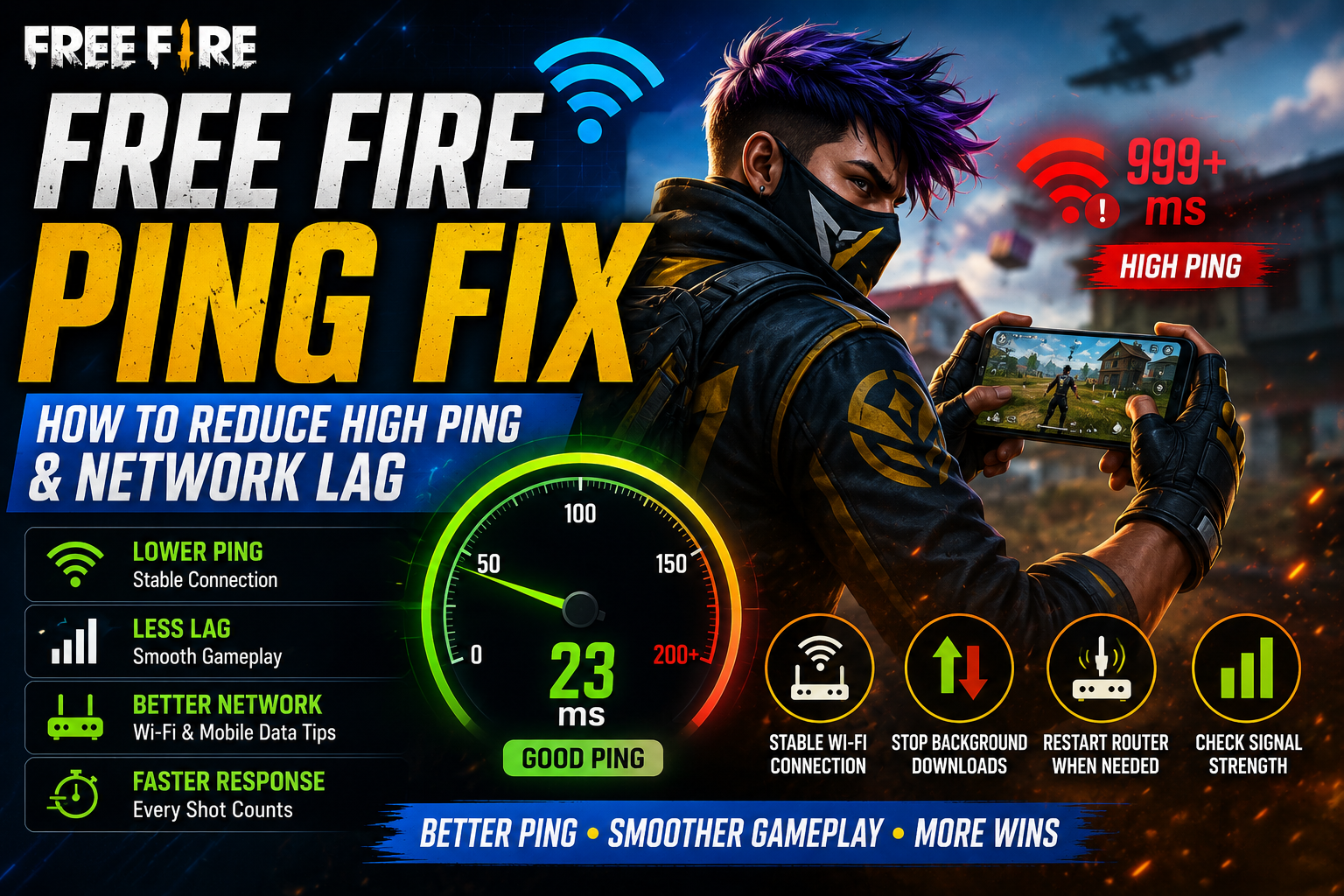
Nothing ruins a competitive Free Fire match faster than pressing the firing button, seeing your character freeze, and waking up in the spectator screen seconds later. When your network connection stutters during a high-stakes Clash Squad or Battle Royale gunfight, skill and strategy no longer matter.
A common point of confusion among mobile gamers is mistaking network lag (high ping) for device lag (low FPS). You can own a high-end flagship smartphone running Free Fire at a silky-smooth 60 or 90 frames per second, but if your internet connection is unstable, you will still experience severe delay, rubber-banding, and unregistered shots.
This guide focuses specifically on diagnosing and resolving network-related latency, packet loss, and ping spikes in Free Fire across both Wi-Fi and mobile data connections.
Quick Answer: How to Fix High Ping in Free Fire
If you are experiencing sudden connection spikes during gameplay, run through this immediate troubleshooting checklist:
1. Verify the Issue Type: Confirm whether the problem is network delay (high ping indicator) or phone hardware stuttering (low FPS).
2. Close Bandwidth-Heavy Apps: Stop video streams, background cloud syncing, large app downloads, and social media media loading.
3. Move Closer to the Wi-Fi Router: Reduce physical distance and eliminate thick walls between your smartphone and the access point.
4. Pause Network Sharing: Ensure other household members are not downloading large files, streaming 4K video, or backing up devices.
5. Switch Between Wi-Fi and Mobile Data: Test both connections to determine if your home broadband or your cellular carrier is causing the bottleneck.
6. Restart Your Network Connection: Toggle Airplane Mode on for 10 seconds on mobile data, or power-cycle your Wi-Fi router.
7. Avoid Peak Congestion Hours: Recognize that local cellular towers and residential ISPs often slow down during evening peak usage hours.
8. Check background Sync Permissions: Restrict non-essential apps from accessing background data while you are gaming.
9. Reboot Your Smartphone: Clear temporary network socket caches by restarting your mobile device.
10. Test Connection Stability: Play a casual or practice match to monitor stability before launching into ranked matches.
What Is Ping in Free Fire?
In online gaming, ping (also referred to as latency) is the measure of time—in milliseconds (ms)—it takes for a signal to travel from your smartphone to Garena’s game servers and return back to your device.
[ Your Smartphone ] ────► Send Action Signal (e.g., Shoot / Move) ────► [ Free Fire Server ]
                                                                               │
[ Your Smartphone ] ◄──── Receive Reaction Confirmation ───────────────────────┘
                        └─── Total Time Elapsed = PING (ms) ───┘
When you tap the fire button in Free Fire:
- Your device sends a data packet across your network path to Garena’s server.
- The server processes the action, updates the game state, and sends data back to your screen.
- If your ping is 30ms, this round-trip communication happens almost instantaneously.
- If your ping rises to 200ms or 999ms, a noticeable delay occurs between your physical tap and the on-screen action.
Ping vs Download Speed
Many players assume that having a high download speed (such as a 100 Mbps fiber line) guarantees a low ping in games. However, download speed measures bandwidth capacity, while ping measures speed of travel. Having a wide pipe (high bandwidth) does not mean data travels through it instantly (low latency). Free Fire requires very little actual data bandwidth to run, but it relies heavily on low, stable, round-trip delivery time.
What High Ping Feels Like in Free Fire
Network lag presents distinct visual and mechanical symptoms in-game. Recognizing these helps you fix the right problem:
- Delayed Gunshots and Hits: You fire at an opponent, but the hit markers and damage numbers appear a full second later.
- Gloo Wall Delay: You tap to deploy a Gloo Wall during an emergency, but your character dies before the wall visually manifests on the field.
- Teleporting and Rubber-Banding: Your character walks forward, only to be snapped back to a position you occupied three seconds ago.
- Items Failing to Pick Up: You stand over weapons or armor, tap the loot icon repeatedly, and nothing enters your inventory.
- Enemies Sliding or Freezing: Opponents appear to run in place against a wall, then suddenly jump to a completely different location on the map.
- Connection Error Indicators: The top corner of your HUD displays yellow or red latency numbers, frequently flashing 999+ ms.
Ping vs FPS: What Is Actually Causing the Problem?
Before attempting advanced fixes, you must identify whether your connection or your phone hardware is at fault.
| Problem Type | Main In-Game Symptom | Key Indicator on HUD | Primary Area to Check |
|---|---|---|---|
| High Ping (Network Lag) | Delayed actions, rubber-banding, delayed loot, unregistered damage. | Latency indicator turns yellow/red (150ms to 999+ ms). | Router, Wi-Fi distance, mobile data signal, ISP routing, background downloads. |
| FPS Drops (Hardware Lag) | Choppy screen rendering, micro-stutters during gunfights, screen freezing. | On-screen ping remains low (20–50ms), but visuals stutter. | Graphics settings, processor heat, low RAM, thermal throttling. |
| Thermal Slowdown | Game runs smoothly for 10 minutes, then becomes sluggish and warm. | Frame rate collapses; ping remains completely normal. | Phone temperature, ambient room heat, protective cases. |
| Touch / Input Latency | Taps feel unresponsive; swipes do not rotate the camera smoothly. | Frame rate and ping look normal; display touch polling lags. | Dirty screen glass, low-quality screen protectors, charging while playing. |
If your screen visuals are choppy even when your ping reads 30ms, your phone is suffering from hardware performance drops. Read our complete guide to Free Fire FPS Boost(/free-fire-fps-boost/) to solve frame-rate problems.
Best Connection for Free Fire: Wi-Fi vs Mobile Data
Neither connection type is universally superior; both possess distinct structural advantages and weaknesses depending on your local environment.
| Connection | Advantages | Possible Problems | Best Use Case |
|---|---|---|---|
| Home Wi-Fi |
• Generally lower baseline latency.
• Uncapped bandwidth limits.
• Free from cellular tower load.
| – |
• Signal interference through concrete walls.
• Bandwidth contention from household users.
• Bufferbloat on older routers.
| Ideal when playing near the router on a private, unmanaged home network. |
|---|
| ———————————————————————— |
| Mobile Data (4G/5G) |
• Direct point-to-point wireless path.
• Independent of home user activity.
• Portable across different locations.
| – |
• Highly vulnerable to physical coverage dead zones.
• Cellular tower congestion during peak hours.
• Signal degradation inside buildings.
| Ideal when playing on a private connection away from home or on congested shared Wi-Fi. |
|---|
How to Fix Free Fire Ping on Wi-Fi
Wi-Fi networks are convenient, but radio frequency interference, wall obstacles, and bandwidth congestion frequently destabilize gaming packets.
[ Router ] ─── (Radio Waves) ───► [ Obstacles: Walls / Appliances ] ───► [ Smartphone ]
                                  └── Adds Latency & Jitter ──┘
1. Reduce Distance and Obstacles
Physical distance and physical structures (such as concrete, brick walls, and large metal appliances) degrade Wi-Fi signal integrity, causing packet loss. Play in the same room as your router or maintain a clear line of sight whenever possible.
2. Choose the Right Wi-Fi Frequency Band
Modern routers offer two distinct wireless bands:
- 2.4 GHz Band: Offers long physical range and penetrates walls better, but suffers from high radio interference from household electronics (microwaves, Bluetooth, neighboring networks).
- 5 GHz Band: Offers substantially faster speeds, cleaner channels, and lower local congestion, but has a shorter effective range and struggles to pass through thick walls.
> Recommendation: Sit within 10-15 feet of your router and connect to the 5 GHz network band for the lowest local latency. If you must play several rooms away, switch to the 2.4 GHz band to maintain a stable, uninterrupted link.
3. Eliminate Local Bandwidth Contention
If family members or housemates are streaming high-definition video, downloading game updates, or participating in cloud backups on the same Wi-Fi network, your gaming packets will be forced to queue behind their traffic. Ask users to pause heavy downloads during competitive sessions, or pause automated cloud updates on nearby smart devices.
4. Power-Cycle Your Wi-Fi Router
Routers are small computers that process millions of data packets daily. Over time, internal memory caches fill up, causing bufferbloat and packet queuing delays. Restart your router by pulling the power cable, waiting 30 seconds, and plugging it back in to clear its internal memory routing tables.
How to Fix Free Fire Ping on Mobile Data
Mobile networks communicate via cellular towers, making them susceptible to environmental changes, distance from cell sites, and local subscriber density.
1. Relocate for Stronger Signal Strength
Physical location heavily dictates cellular quality. Moving near a window, stepping out onto a balcony, or moving away from basement enclosures can immediately stabilize a fluctuating cellular link.
2. Toggle Airplane Mode
If your phone is stuck communicating with a distant or overloaded cell tower, turning Airplane Mode ON for 10 seconds and then OFF forces your device’s cellular modem to drop its connection and handshake with the nearest, strongest cell tower available.
3. Prevent Background Data Usage
Cellular operating systems allow applications to refresh content silently in the background. Navigate to your phone’s system settings, access Data Usage / App Management, and disable background data permissions for heavy applications like social media platforms, cloud storage drives, and app stores.
Stop Background Apps From Using Your Connection
Background network activity is one of the leading causes of random ping spikes during matches. An unexpected cloud photo upload or automated application update can instantly spike your in-game ping from 40ms to 999ms.
┌──► System OS Auto-Update (Background)
                               │
[ Total Network Bandwidth ] ───┼──► Cloud Photo Backup (Background)
                               │
                               └──► Free Fire Data Stream (Starved) ──► PING SPIKE!
Before launching Free Fire, ensure the following activities are paused:
- Automated Store Updates: Pause auto-updates inside the Google Play Store or Apple App Store.
- Cloud Storage Syncing: Temporarily pause automatic photo, video, and document backups to Google Photos, iCloud, or OneDrive.
- Background Streaming & Social Media: Fully close video streaming platforms and social media applications so they do not auto-play videos in the background.
- Mobile Hotspots: If you are sharing your mobile data via personal hotspot to another device, disable it during gameplay sessions.
Does Download Speed Affect Free Fire Ping?
No. A common misunderstanding is that upgrading from a 20 Mbps internet package to a 200 Mbps package will automatically reduce your in-game ping.
- Download Speed (Bandwidth): The *volume* of data your connection can download per second. Free Fire uses very little bandwidth during actual gameplay (often less than 10–20 MB per hour).
- Ping (Latency): The *time speed* it takes for a single piece of data to travel from your phone to Garena’s servers.
Having a 500 Mbps connection over an unstable, noisy copper line will still result in high ping and packet loss. Conversely, a modest 10 Mbps connection on a clean, low-latency fiber optic line will deliver a perfectly stable, low-ping Free Fire experience.
Packet Loss and Jitter Explained
High ping is frustrating, but packet loss and jitter are far more damaging to competitive gameplay.
| Issue | Technical Meaning | In-Game Impact on Free Fire |
|---|---|---|
| Latency (Ping) | The baseline travel time (in ms) between your device and the game server. | High ping creates a uniform delay on all your actions (e.g., a constant 0.2-second delay). |
| Jitter | The rate of fluctuation in your latency over time (e.g., ping bouncing between 40ms and 300ms rapidly). | Highly unpredictable gameplay; makes timing drag shots and movement impossible to master. |
| Packet Loss | Data packets sent from your phone fail to reach the server entirely and are dropped in transit. | Actions are ignored completely; leads to rubber-banding, teleporting, and unregistered hits. |
[ Clean Stable Ping ]  ──►  40ms ──► 42ms ──► 41ms ──► 40ms (Smooth Gameplay)

[ High Jitter ]        ──►  40ms ──► 280ms ──► 50ms ──► 350ms (Unpredictable Lag)

[ Packet Loss ]        ──►  40ms ──► [DROPPED] ──► 42ms ──► [DROPPED] (Teleporting/No Damage)
Even if your average ping displays as a low number, severe jitter or packet loss will cause your character to jump backward, skip animations, or miss shots entirely.
How to Test Whether Your Internet Is the Problem
Isolate whether connection instability originates from your local setup or from broader network infrastructure by following this practical diagnostic process:
Step 1: Test Non-Gaming Apps (Browser / Video) ──► Smooth?
                                                     │
                                                     ▼
Step 2: Test Another Online Mobile Game ──────────► Laggy Too? ──► Local Internet Issue
                                                     │
                                                     ▼ (No, runs clean)
Step 3: Compare Wi-Fi vs. Mobile Data in FF ──────► Both Lag?  ──► Regional ISP / Routing Issue
1. Test General Connectivity: Open a browser or media app on your phone. If web pages load slowly or videos continuously buffer, your local connection is congested or unstable.
2. Test Another Online Game: Launch a different multiplayer game. If high ping and packet loss persist across multiple different online games, the issue lies directly with your local router, home broadband, or cellular carrier.
3. Compare Connection Types: If Free Fire lags on home Wi-Fi, immediately switch to mobile data (or vice versa). If the issue disappears on one specific connection, you have isolated the problematic network.
4. Identify Session Patterns: Take note of whether connection spikes happen at specific times of the day (e.g., every evening between 8:00 PM and 10:00 PM). Recurring evening lag points directly to neighborhood ISP peak congestion rather than your smartphone.
Why Free Fire Ping Changes During the Day
If your connection runs flawlessly during the morning but deteriorates in the evening, you are experiencing environmental and network congestion:
- Residential Peak Usage: Between 7:00 PM and 11:00 PM, millions of users in your local area log online to stream video, download files, and browse. This heavy traffic strains local ISP distribution nodes.
- Cellular Tower Congestion: Mobile phone towers have finite bandwidth limits. When thousands of smartphones connect to the same tower simultaneously in a dense neighborhood, available bandwidth per user shrinks, increasing latency and jitter.
- Household Device Competition: During peak hours, other members of your household are more likely to be online, competing for local Wi-Fi router resources.
Should You Use a VPN to Reduce Free Fire Ping?
Virtual Private Networks (VPNs) redirect your internet traffic through an encrypted third-party server before sending it to Garena’s game servers.
Standard Route:  [ Smartphone ] ─────────────────────────► [ Free Fire Server ] (Direct)

VPN Routing:    [ Smartphone ] ──► [ VPN Server ] ──────► [ Free Fire Server ] (Extra Hop)
The Reality of Gaming VPNs:
- In Most Cases, VPNs Increase Ping: Adding a third-party server into your connection path introduces an additional physical “hop,” which almost always increases baseline latency.
- Rare Exceptions: A VPN can only improve ping if your internet service provider (ISP) is actively throttling gaming traffic or routing your connection through an inefficient, poorly optimized geographic path.
- Risks of Free VPNs: Untrusted, free VPN applications often log personal user data, feature unstable public servers, and introduce massive packet loss.
> Advice: Do not rely on VPNs as a primary solution for lower ping. Try optimizing your local Wi-Fi, switching frequency bands, or using mobile data first. Avoid suspicious third-party “ping booster” or free VPN apps.
Router Settings That May Help
For advanced users comfortable accessing their home router administration panel, a few conservative adjustments can stabilize gaming traffic:
- Enable Quality of Service (QoS): If your router supports QoS, turn it on and assign your smartphone highest priority status over other home devices. This ensures gaming packets skip ahead of heavy download traffic.
- Select Less Congested Wi-Fi Channels: Use a free Wi-Fi analyzer tool to check neighboring networks. Manually set your router’s 2.4 GHz or 5 GHz transmission to an unused, interference-free channel.
- Keep Router Firmware Updated: Log into your router manufacturer’s portal periodically to install official security and performance firmware updates.
What About Changing DNS?
Changing your phone or router DNS settings (such as switching to Google DNS or Cloudflare DNS) alters how your device resolves web domain names into IP addresses. Changing your DNS does not speed up the real-time latency of an established game connection. While a fast DNS speeds up initial website address lookup times, it has no direct impact on in-game ping once a match has started.
Free Fire Network Lag vs Server/Route Problems
It is crucial to recognize that not all connection problems originate from your phone or home router. Internet infrastructure relies on intermediate routing nodes:
[ Your Phone ] ──► [ Home Router ] ──► [ Local ISP Node ] ──► [ Regional Transit Hub ] ──► [ Garena Game Server ]
  (You Control)      (You Control)       (ISP Control)         (Infrastructure)          (Garena Control)
If an intermediate international fiber optic cable experiences physical damage, or if an intermediate routing hub suffers hardware failure, data packets will be re-routed through longer, inefficient paths.
When regional routing issues occur:
- Hundreds of players from the same region or ISP will experience high ping simultaneously.
- Local troubleshooting steps (restarting routers, closing apps) will not solve the issue.
- The issue will remain until your ISP or Garena’s network engineers resolve the external routing path.
Quick Troubleshooting Decision Table
| Symptom | Likely Cause | First Step to Try |
|---|---|---|
| High ping on all networks (Wi-Fi & Data) | Background applications downloading updates or syncing cloud data. | Stop auto-updates; check background app permissions; restart smartphone. |
| High ping ONLY on Wi-Fi | Local network congestion, distance from router, or physical wall interference. | Move closer to router; switch from 2.4 GHz to 5 GHz band; power-cycle router. |
| High ping ONLY on Mobile Data | Weak cellular coverage area or local tower congestion. | Move near a window; toggle Airplane Mode ON/OFF to connect to a closer tower. |
| Ping spikes randomly every few minutes | Background sync tasks or interference from nearby household appliances. | Turn off background data for social media apps; pause cloud photo backups. |
| Rubber-banding and unregistered damage | Packet loss or heavy jitter across your connection line. | Switch connection modes; clear line of sight to router; avoid peak hours. |
| Good ping, but screen stutters during fights | Hardware FPS drops or phone thermal throttling. | Lower in-game graphics to Smooth; remove heavy phone case; let phone cool down. |
| Controls feel delayed, but ping is low | Display touch polling latency or dirty glass surface. | Clean screen; remove thick/damaged screen protectors; avoid playing while fast-charging. |
| Ping spikes only when family members are online | Household bandwidth competition and router bufferbloat. | Enable router Quality of Service (QoS) or switch to 5 GHz Wi-Fi band. |
Best Free Fire Ping-Fix Checklist
Save or screenshot this practical quick-reference checklist to run through whenever high ping disrupts your gaming sessions:
┌────────────────────────────────────────────────────────────────────────┐
│                   FREE FIRE PING-FIX CHECKLIST                         │
├────────────────────────────────────────────────────────────────────────┤
│  [ ] Confirm whether problem is PING (ms) or FPS (Frame Drops)         │
│  [ ] Force-close all background apps (Social Media, Cloud Sync)        │
│  [ ] Pause active store downloads and system updates                   │
│  [ ] Move into the same room as your Wi-Fi router                      │
│  [ ] Connect to the 5 GHz Wi-Fi band (if nearby)                       │
│  [ ] Toggle Airplane Mode for 10s if using Mobile Data                 │
│  [ ] Reboot your Wi-Fi router (power-cycle for 30s)                    │
│  [ ] Test Wi-Fi vs Mobile Data to isolate the bad connection           │
│  [ ] Remove thick metallic cases that block antennas                   │
│  [ ] Check if ping spikes correspond to peak evening hours              │
└────────────────────────────────────────────────────────────────────────┘
Related Free Fire Troubleshooting Guides
If applying network fixes does not fully resolve your gameplay issues, your device may be suffering from secondary hardware bottlenecks. Explore our dedicated performance guides:
- Device Thermal & Performance Issues: If your phone runs hot and stutters despite having a green ping indicator, apply the hardware fixes in our Free Fire Lag Fix(/free-fire-lag-fix/) guide.
- Budget Phone Optimizations: If you are playing on an older smartphone with limited memory, check out our recommended configurations in Free Fire Settings for Low-End Phones(/free-fire-settings-for-low-end-phones/).
- Control Responsiveness: If your touch inputs feel sluggish after stabilizing your ping, fine-tune your controls using our guide to Free Fire Sensitivity Settings(/free-fire-sensitivity-settings/).
FAQ
What is a good ping for Free Fire?
A ping between 15ms and 50ms is considered ideal for competitive play, offering immediate response times. A ping between 51ms and 100ms is completely playable for casual matches. Pings exceeding 150ms introduce noticeable input delays, while pings above 250ms result in severe rubber-banding and unregistered shots.
Why is my Free Fire ping so high when my internet is fast?
Download speed (bandwidth) is different from ping (latency). Having a fast 100 Mbps internet plan does not guarantee low latency if your connection suffers from poor ISP routing, local Wi-Fi interference, signal distance, or background cloud backups.
How do I reduce ping in Free Fire?
Move closer to your Wi-Fi router, connect to a 5 GHz band, close background applications, pause automated app downloads, restart your router, and switch to mobile data if your home broadband is congested.
Is Wi-Fi better than mobile data for Free Fire?
Neither is universally better. Wi-Fi generally provides lower baseline latency if you are near the router, but mobile data (4G/5G) can offer a more stable connection if your home Wi-Fi is heavily shared among family members.
Does faster internet reduce Free Fire ping?
Not necessarily. Upgrading your internet package speed increases bandwidth volume, but it does not automatically decrease the physical travel time (ping) of gaming data packets to Garena’s servers.
Does a VPN reduce Free Fire ping?
In most scenarios, no. A VPN adds an extra server hop to your connection path, which usually increases latency. A VPN only helps if your ISP is actively throttling game traffic or using an inefficient routing path to the server.
Why does Free Fire lag when other people use Wi-Fi?
When other users stream 4K video or download large files, they consume available router queue bandwidth, causing your real-time gaming packets to wait in line (a phenomenon known as bufferbloat), leading to ping spikes.
Why does my ping spike randomly?
Random ping spikes are typically triggered by background app syncs (such as cloud photo backups), automated app updates, incoming social media notifications, or temporary wireless signal interference.
Can DNS reduce Free Fire ping?
No. Changing your DNS (such as switching to Google DNS) speeds up domain name lookup times for websites, but it does not alter the real-time latency of an established game connection once a match has started.
Why is my ping good but the game still feels laggy?
If your ping is low (e.g., 30ms) but the game feels choppy, you are experiencing hardware frame drops (low FPS) or touch polling latency, rather than network lag. Lower your in-game graphics settings and ensure your phone is not overheating.
Final Verdict
Fixing network lag in Free Fire requires a systematic approach. Always start by separating hardware issues (FPS drops) from network issues (high ping).
Once you confirm that network latency is the problem, focus on variables within your direct control: eliminate competing background traffic, sit closer to your router on a clean 5 GHz band, power-cycle hardware regularly, and switch between Wi-Fi and mobile data to identify the cleanest path. Understanding packet loss and recognizing when regional routing issues occur will save you time and keep your competitive matches running smoothly.